Calendar View
The Calendar page in the sidebar shows upcoming dates across your transactions — closings, key dates, task due dates, and custom events in one view.
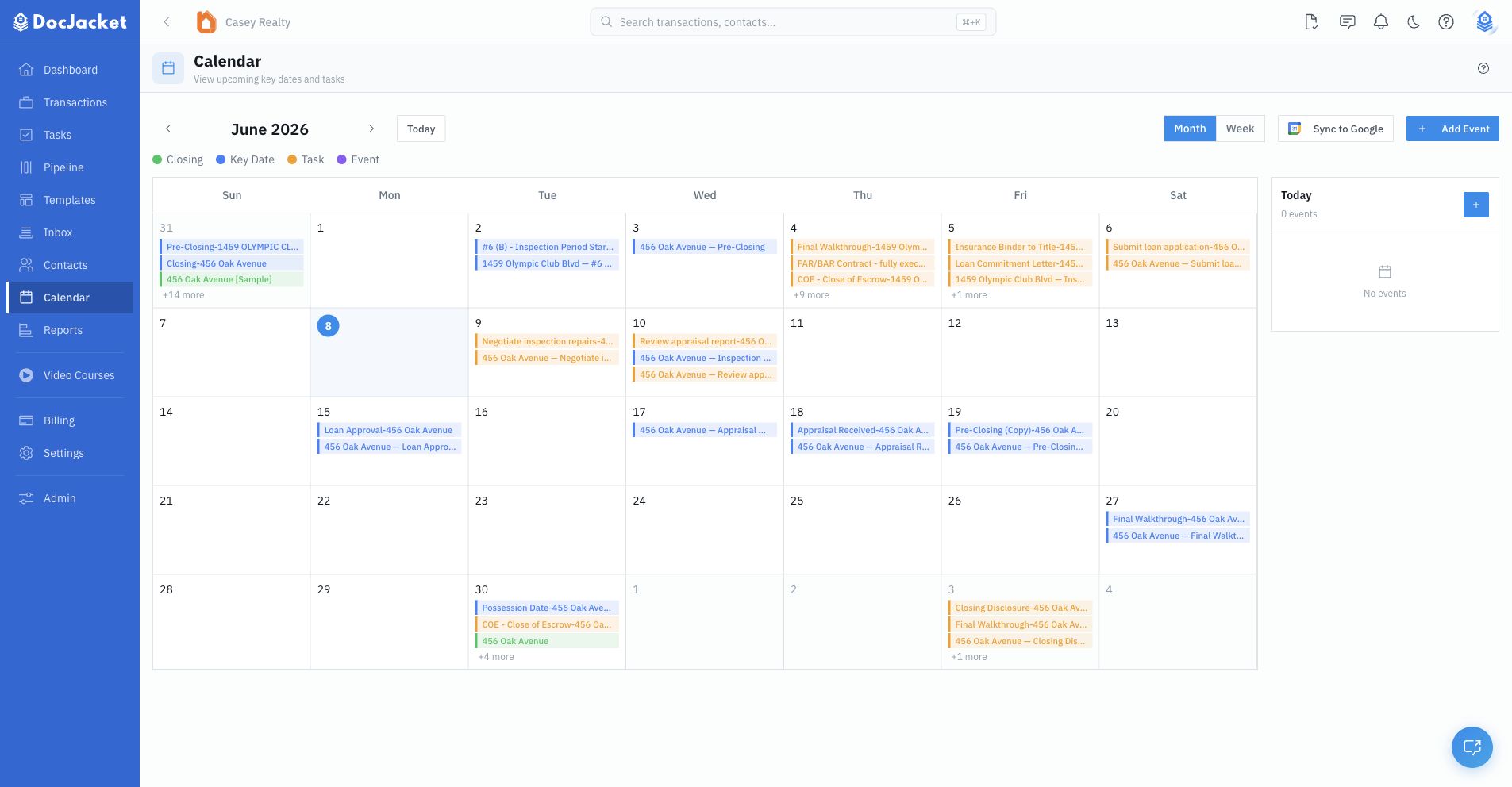
Navigating the calendar
- Month and Week views — Switch between a monthly overview and a detailed weekly view with time slots
- Navigate dates — Move forward and back by month or week, or jump to today
- Click any day — The agenda panel shows all events for that selected day
- Add Event — Create a custom event with subject, description, location, date/time, all-day setting, and color
On desktop, the agenda appears beside the calendar. On mobile, it appears below the calendar.
Color-coded events
Events are color-coded by type so you can tell them apart at a glance:
- Closing — Transaction closing dates
- Key Date — Important transaction deadlines
- Tasks — Due dates for open tasks
- Event — Custom calendar events you added manually
The legend at the top of the calendar shows what each color means.
Day agenda
Click any day to see the full agenda panel. From here you can:
- Click an event to see its details
- Add a new event to that day
- Review event time, all-day status, and location when available
Google Calendar
If Google Calendar is connected, the Calendar page shows Sync to Google. Use it to push closings, key dates, and tasks to Google Calendar.
If Google Calendar is not connected, the page shows Connect Google, which takes you to Settings > Integrations.
DocJacket treats DocJacket as the source of truth for transaction dates. Update dates and tasks in DocJacket, then sync those changes out to Google Calendar. This is not a general two-way import of all external calendar events.
Task due dates sync only when task calendar sync is enabled in Settings > Calendar. A transaction can also be hidden from Google Calendar from its Overview calendar-sync card.
Tips
- Use the calendar to spot busy days — if you have 3 closings on the same day, you'll see it immediately
- Use custom events for meetings, showings, or internal reminders that are not transaction key dates
- Use Settings > Integrations to manage calendar connections