Navigating DocJacket
Here's a quick tour of the DocJacket layout so you know where everything lives.
The Dashboard
The dashboard is your home base. When you log in, you'll see:
- Today's Briefing — A snapshot of your day: closings today, tasks due, overdue items, and your overall workload level
- Quick Actions — Shortcuts to common work like creating a transaction or uploading a contract
- Closing Soon — Transactions approaching their closing date, with urgency indicators
- Tasks — Your most pressing to-dos across all transactions
- Month Stats — New transactions, closed deals, active volume, and pending tasks for the month
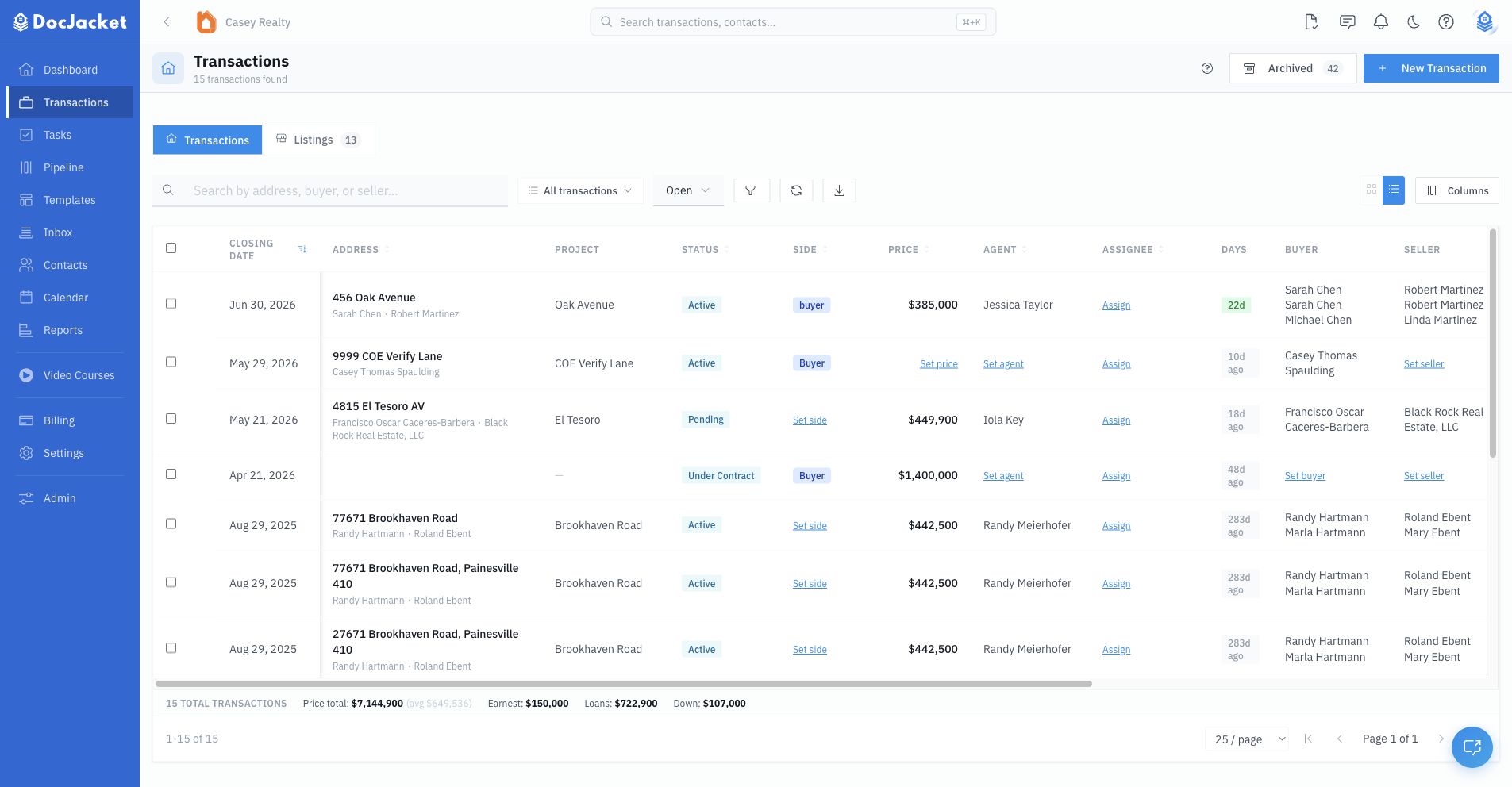
The Sidebar
The sidebar on the left is your main navigation. Here's what each section does:
| Menu Item | What It Does |
|---|---|
| Dashboard | Your daily overview and quick actions |
| Transactions | All your deals — search, filter, and manage |
| Tasks | Organization-wide task list across all transactions |
| Pipeline | Board views for transaction status, task due dates, and buyer offers |
| Templates | Create and manage Playbooks, key date rules, email templates, forms, document lists, and report templates |
| Inbox | Your message center for transaction-related emails |
| Contacts | Your contact database — clients, agents, vendors |
| Calendar | See all key dates, tasks, reminders, and deadlines in a calendar view |
| Reports | Transaction reports and analytics |
| Video Courses | Structured help and training content |
| Billing | Your subscription and payment details |
| Settings | Organization settings, user management, integrations |
The topbar stays available across the app. Use the global search to find transactions and contacts, the message and notification icons for recent activity, the Review queue icon for pending review work, and the help icon when you need support.
Inside a transaction
When you open a transaction, you'll see a tabbed layout:
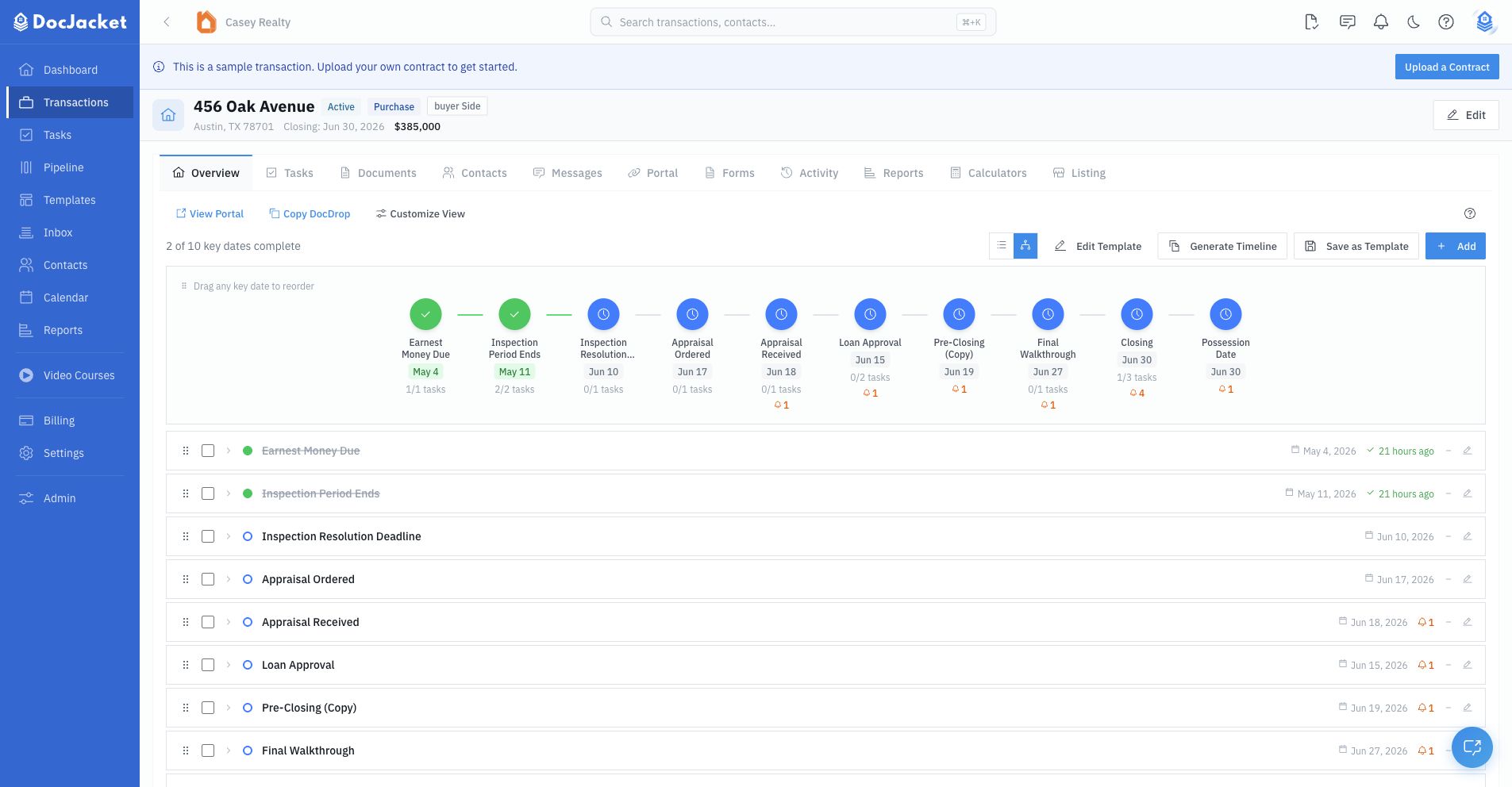
- Overview — Everything at a glance: key dates, financials, contacts, tasks, documents, contingencies, and repairs
- Tasks — To-do list specific to this transaction
- Documents — All files for this deal
- Contacts — People involved in this transaction
- Messages — Email, SMS, portal chat, and scheduled communication surfaces
- Portal — Client and agent portal controls
- Forms — Online form links and submissions
- Activity — Recent activity for the deal
- Reports — Transaction reports and report scheduling
- Calculators — Transaction calculators
The Overview tab is where most TCs spend their time — it's a single-page view of everything important about the deal.
Quick tips
- Pending uploads are not finished transactions — review and save completed extractions before expecting them in the transaction list
- Search is everywhere — use the global topbar search or the search bar on the Transactions page to find deals by address, buyer name, or seller name
- Help chat — Click the chat button in the bottom-right corner anytime for instant AI-powered help
- Review queue — Use the document-tasks icon in the topbar for pending uploads, ready drafts, scheduled sends, and recent activity. Pending uploads are completed extraction scans that still need a final save action.