Extraction Review
The AI Extractions page lists extraction jobs created from uploaded documents.
Use it when a document was scanned but the transaction, listing, or update has not been saved yet, or when you need to inspect extraction history.
Starting an extraction
You can start extraction from the main upload flow or from an existing transaction.
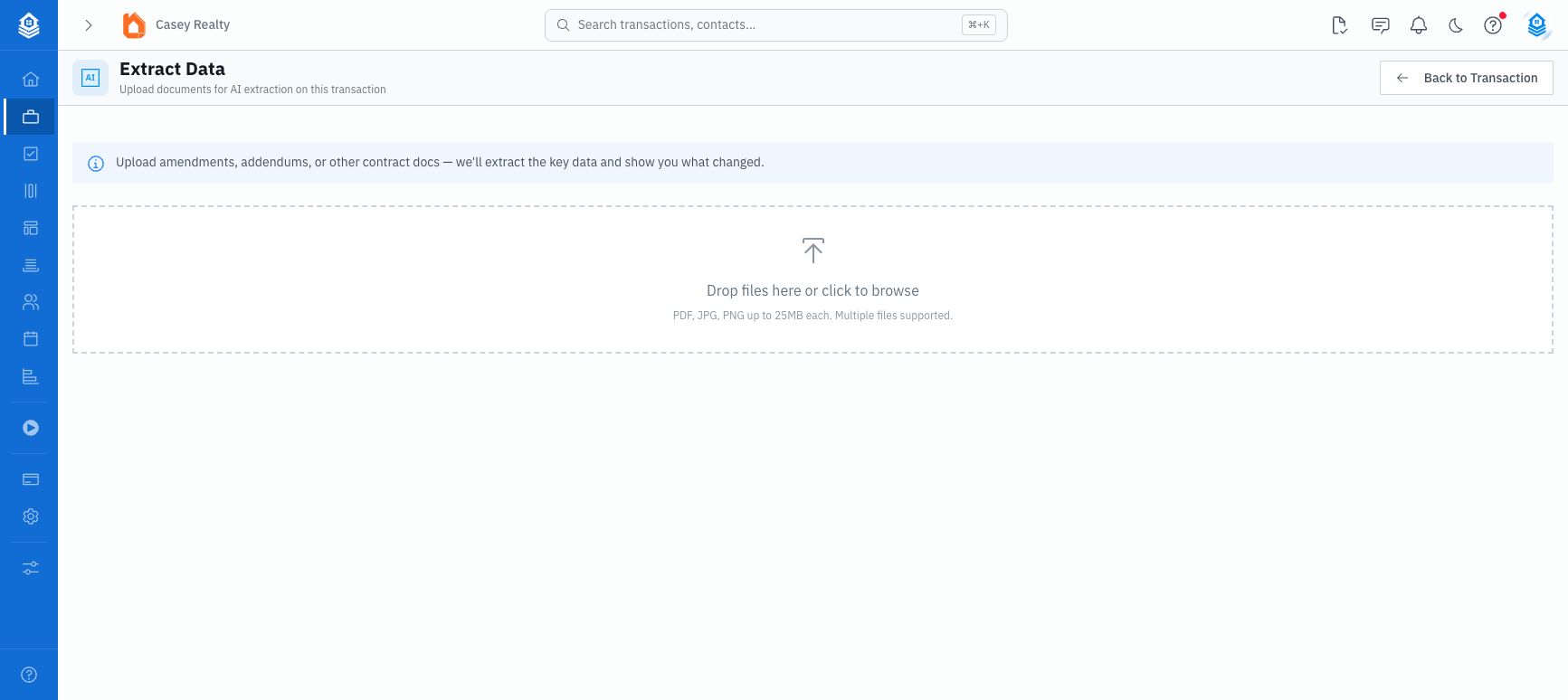
From a transaction, open the Documents tab and choose Extract Data when you want DocJacket to scan documents for that deal.
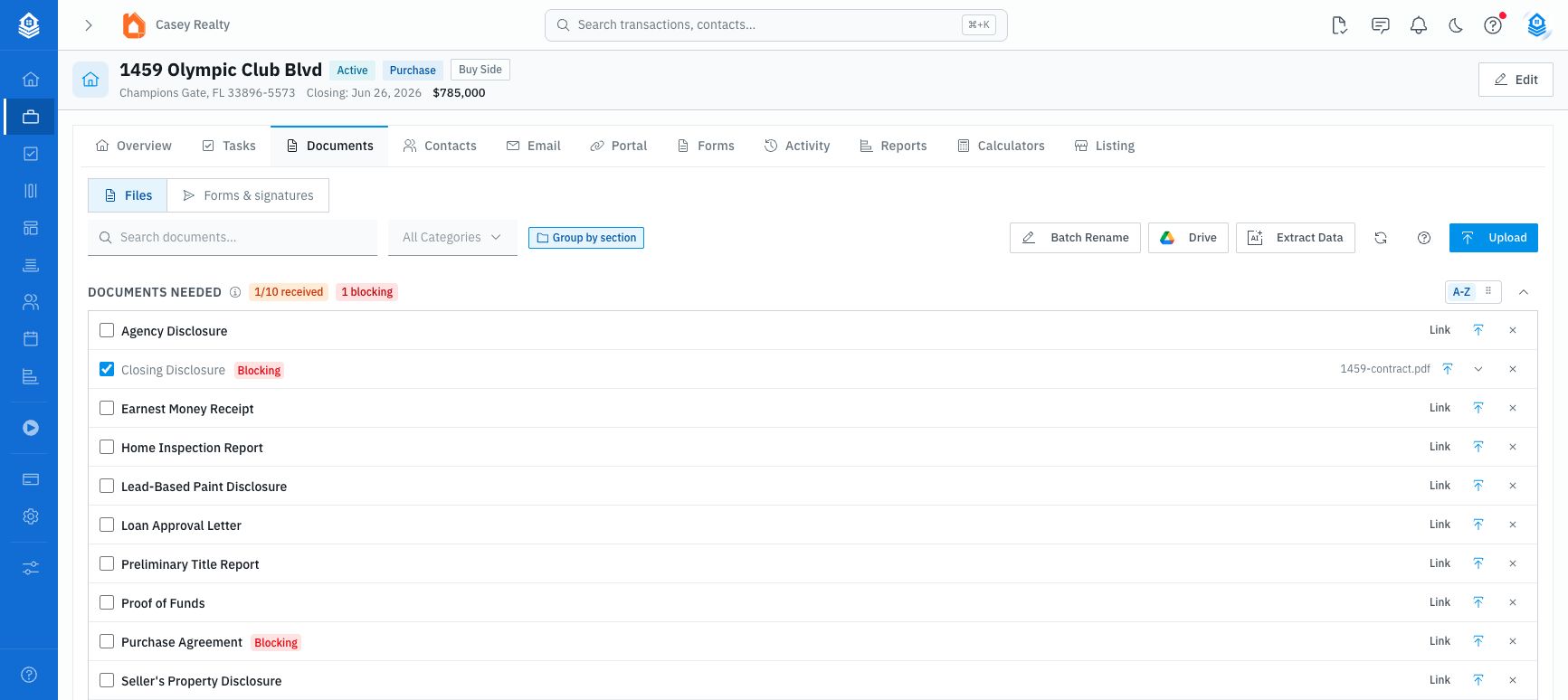
When you start extraction from an existing transaction, DocJacket keeps the upload tied to that deal.
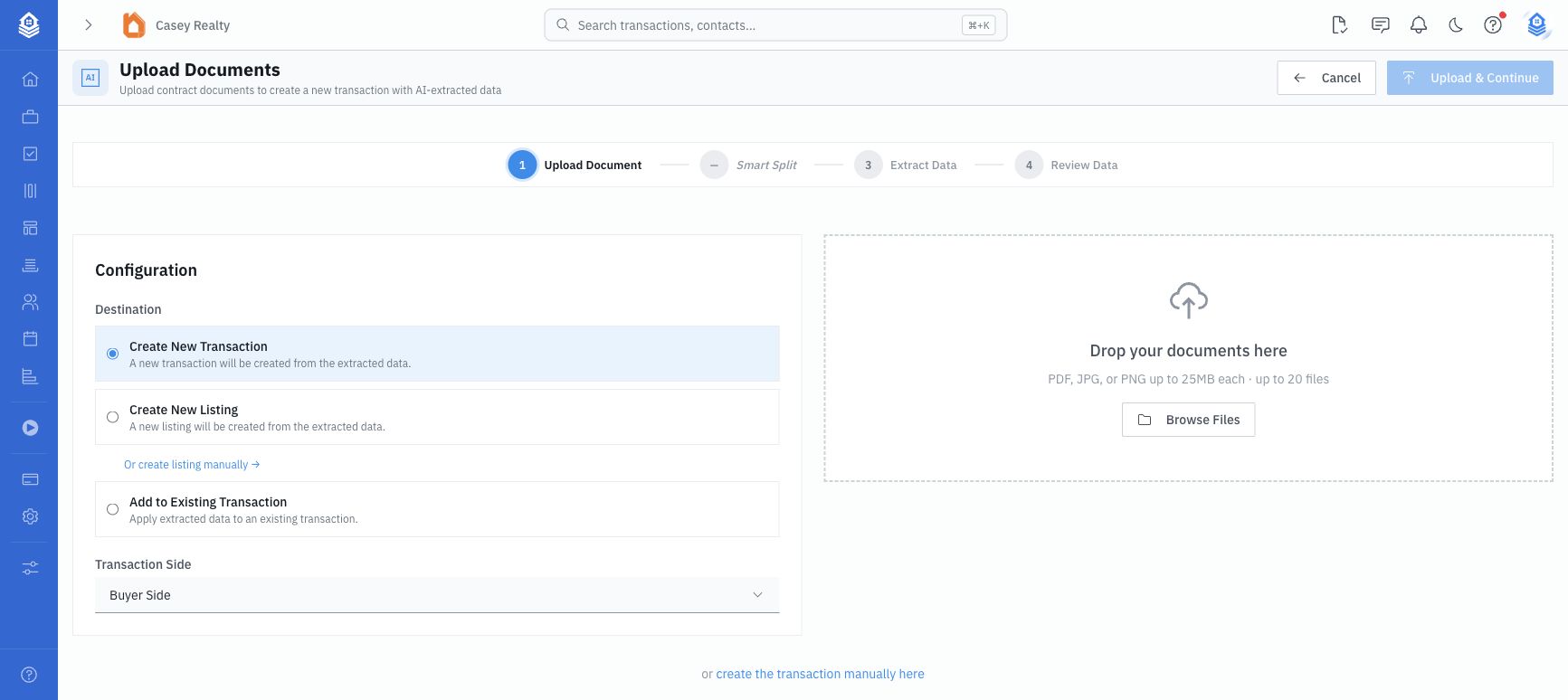
The upload wizard lets you choose the destination before extraction runs:
- Create New Transaction
- Create New Listing
- Add to Existing Transaction
Where unfinished uploads appear
An extraction can finish scanning before anyone saves the result. Unfinished extraction work can appear in three places:
- Dashboard > Pending Uploads - a morning-work section for completed scans that still need review
- Review queue > Pending Uploads - the same unfinished groups in the topbar drawer
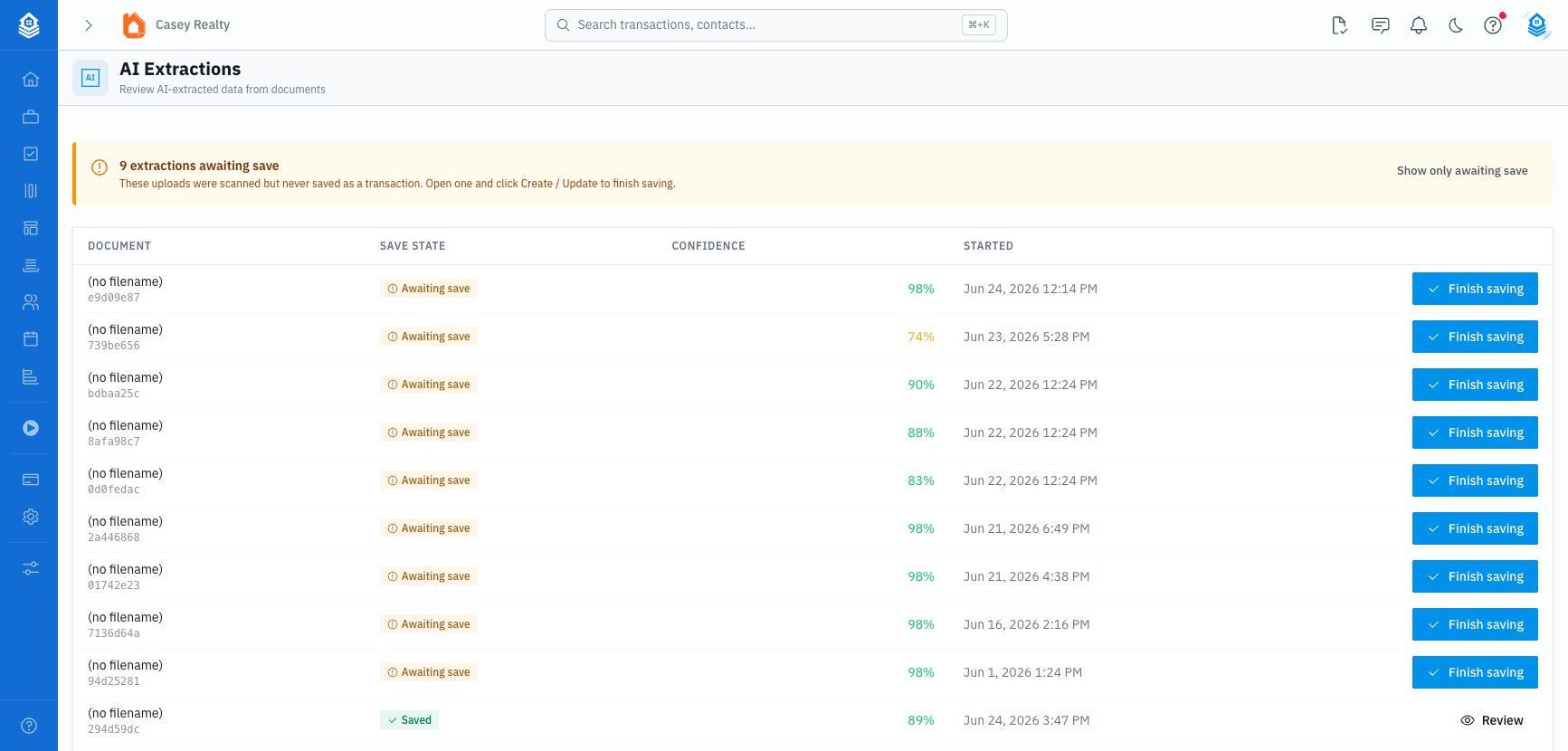
- AI Extractions - the full history list with save state, confidence, start time, and action buttons
Use any of those entry points to get back to the review-and-save workflow.
Save states
The extraction list focuses on the question that matters most: did this become a transaction?
Common save states are:
- Saved - The extraction has been applied to a transaction, listing, or existing-transaction update
- Awaiting save - The extraction completed, but no transaction, listing, or update has been saved yet
- Pending or Processing - The extraction is still running
- Failed or Cancelled - The extraction did not complete
When there are completed extractions awaiting save, the page shows a banner with the awaiting-save count. Use Show only awaiting save to focus on unfinished work. Awaiting-save rows float to the top of the list.
The list also shows the document name, extraction id preview, confidence when available, start time, and the next action:
- Progress - open a pending or processing job
- Finish saving - open a completed job that has not been applied
- Review - open a completed or historical job
- View - inspect a failed or cancelled job
Finish saving
Click Finish saving for a completed extraction that is awaiting save.
Review the extracted fields, source citations, confidence, warnings, and any changed-field comparison. Correct anything that is wrong, then choose the final save action:
- Create Transaction
- Create Listing
- Update Transaction
Nothing is final until you complete the review and save step.
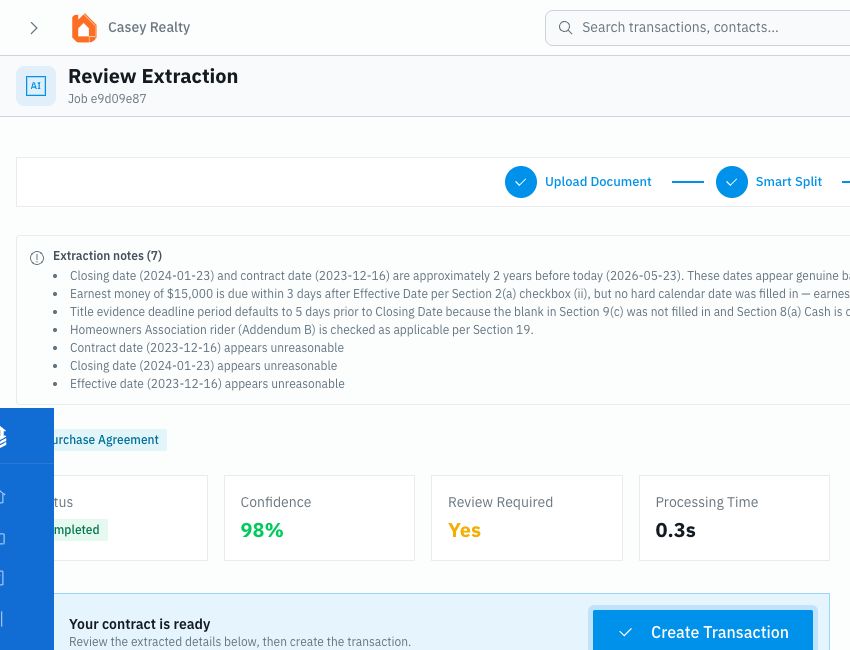
Pending uploads can also appear in the Review queue drawer and on the dashboard. Those cards take you back to the same review-and-save workflow. Use Discard only when the upload should stop appearing as unfinished work; it soft-dismisses the pending-upload card without deleting extraction history.
Single-document progress
For a pending or processing job, open Progress to see where extraction is in the workflow.
The single-document progress page shows:
- Overall progress percentage
- Extraction steps such as downloading, reading, classifying, extracting, parsing, and finalizing
- Elapsed time and progress hints while the job runs
- Warnings when available
- Overall confidence when complete
- Review Results when the scan is ready to review
If extraction fails or is cancelled, the page can offer Retry Extraction, Upload Different File, or Continue Without AI. For low-quality scans, DocJacket shows tips about blurry, dark, cropped, or low-resolution files before retrying.
Group progress
For multi-document uploads, group progress shows each document and the overall extraction progress. When the group is complete, review the merged results before applying them.
Group progress shows:
- Overall progress across all documents
- A card for each job in the group
- Document type labels
- Job status and per-document progress
- Current step, error text, and confidence when available
- Cancel and retry controls for individual documents
If every document fails or is cancelled, use Try Again. If at least one document succeeds, DocJacket can continue to review with the successful results and warn that failed or cancelled documents will be skipped.
When the group is complete, use Review Merged Results. If a group has only one successful document, DocJacket sends you to the single-document review screen. If two or more documents succeed, DocJacket opens the merged review screen.
Smart Split uploads may create a group from one original packet. Review the resulting single or merged review screen before creating or updating the transaction.
Merged review
Merged review combines successful extraction results from multiple documents. Use it to compare values, resolve conflicts, inspect source-document labels, and choose the final destination.
Depending on the extraction, merged review can:
- Suggest creating a new transaction
- Suggest creating a listing
- Suggest attaching to an existing transaction
- Show conflicts when source documents disagree
- Show source document chips and citations
- Let you choose which eligible extracted dates should be added to the transaction timeline
The final button still does the real save: Create Transaction, Create Listing, or Update Transaction.
Review history
Saved extractions can still be opened with Review. Use review history when you need to confirm what the AI extracted, inspect confidence, or understand what was applied.
Discarded pending uploads can stop appearing in Pending Uploads, but the extraction jobs are still part of extraction history.
Best practice
After uploading a contract, check the dashboard's Pending Uploads section or the AI Extractions page. If an extraction is awaiting save, open it and finish the review so the deal appears in the right transaction workflow.
If a user says, "I uploaded a contract but no transaction appeared," first check Pending Uploads and AI Extractions. Most of the time, the scan finished and is waiting for the final save action.