Pipeline View
The Pipeline page is a visual board for work in motion. It has three tabs:
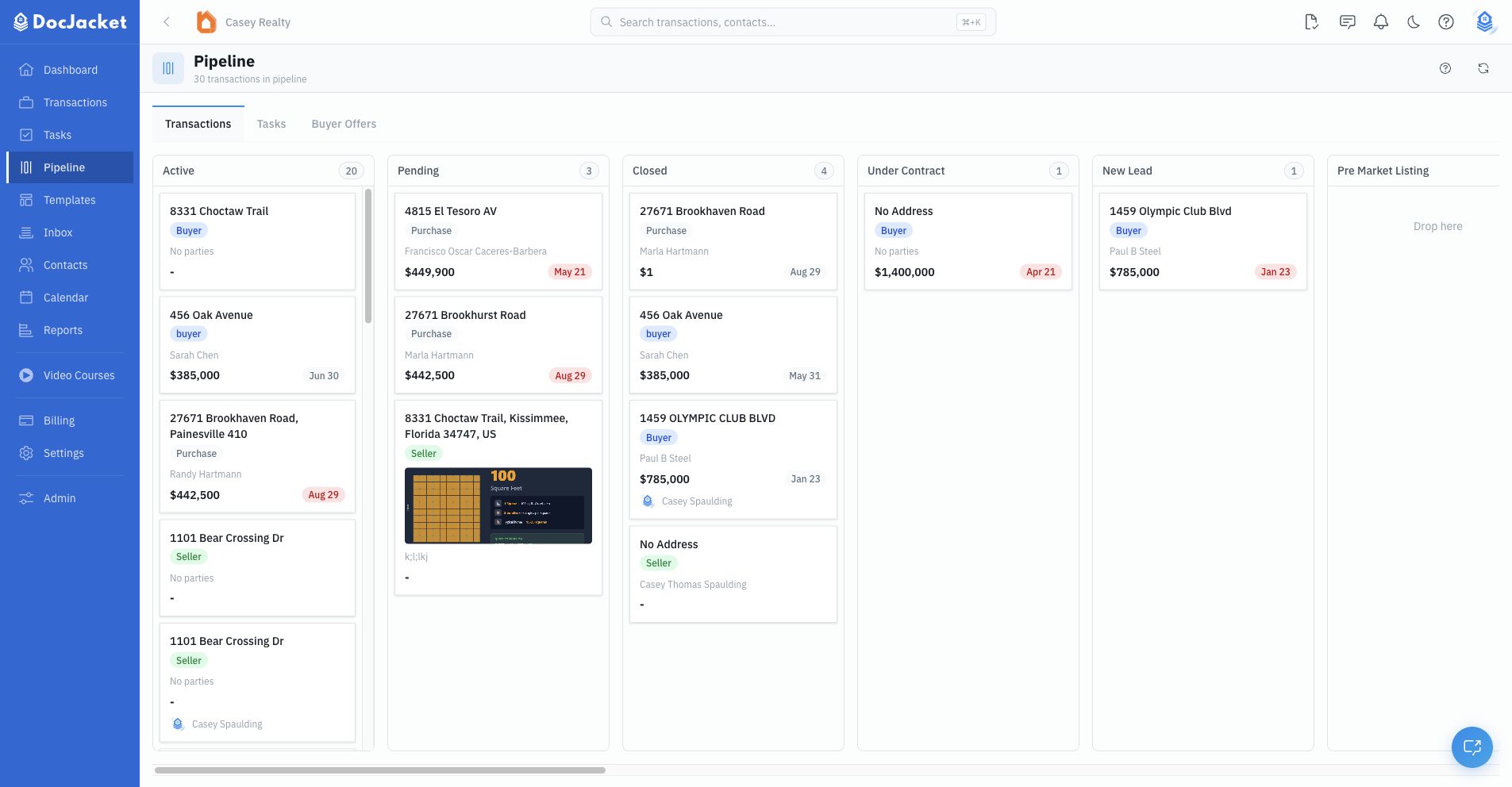
- Transactions — non-offer transactions grouped by active transaction status
- Tasks — open tasks grouped by due-date bucket across transactions
- Buyer Offers — offer-stage transactions that can be promoted into the regular transaction pipeline
Use the tabs at the top of the Pipeline page to switch views.
Transactions view
The Transactions view is a Kanban board. Each column represents an active non-offer transaction status configured for your organization. Transaction cards appear in the column that matches their current status.
If your team hides a status in settings, that status stops appearing as a Pipeline column. If a transaction is in an offer-stage status, it belongs in Buyer Offers instead of the main Transactions board.
Transaction cards
Each card shows:
- Property address — Click to jump into the transaction
- Type and side — Buyer, seller, dual, lease, and related labels
- Primary image — When a property image is available
- Parties — Buyer or seller names when available
- Purchase price — When a price is available
- Closing date — When it's expected to close
- Assignee — When the transaction has an owner
- Unread message badge — When that transaction has unread messages
Drag and drop
Move a card between status columns to update the transaction's status. DocJacket saves the change in the background and rolls the card back if the update fails.
Moving a transaction from an open status into a closed or cancelled status is a terminal transition. DocJacket closes out related pending work behind the scenes, including incomplete key dates, open tasks, pending scheduled messages, pending scheduled emails, and unsent reminders.
Inbox intakes
When unprocessed intakes exist, the Transactions view shows an Inbox column before the status columns. Click an intake card to review it, confirm the transaction details, and convert it into a transaction.
The Inbox column is for inbound leads, Front Door submissions, and other intake items that have not been processed yet. Inbox cards do not appear on the Buyer Offers tab.
Tasks view
The Tasks view shows open tasks in due-date buckets:
- Past Due
- Today
- Tomorrow
- In 2 Days through In 7 Days
- In 8+ Days
- Undated
Use this view when you want to work by deadline instead of by transaction.
You can:
- Search tasks
- Filter by priority, assigned-to-me, active transactions only, past-due tasks, and undated tasks. The active-transactions filter is on by default.
- Sort by due date, name, or priority
- Mark tasks complete or incomplete
- Click into the related transaction task
- Edit a task due date inline
- Drag task cards to supported date buckets to reschedule them. Past Due, In 8+ Days, and Undated are review buckets, not drag targets.
- Use the task dot to set a color or, when the task has a status-option set, pick a configured task status
Buyer Offers view
The Buyer Offers view shows offer-stage transactions separately from the regular transaction pipeline. These cards use offer-stage statuses rather than your normal open, closed, or cancelled transaction statuses.
When an offer becomes an active transaction, use Promote to Transaction on the card. Promotion moves the offer out of Buyer Offers and into the main Transactions board at the organization's default transaction status.
When to use Pipeline vs. Transactions list
- Pipeline is best for board-style triage: moving transactions between statuses, working by task due date, and reviewing offer-stage work.
- Transactions list is better for searching, filtering, saved views, inline editing fields, bulk scanning, and working with many transactions at once.
Both surfaces work with the same transaction records; they are different ways to manage the same work.