How DocJacket's AI is controlled
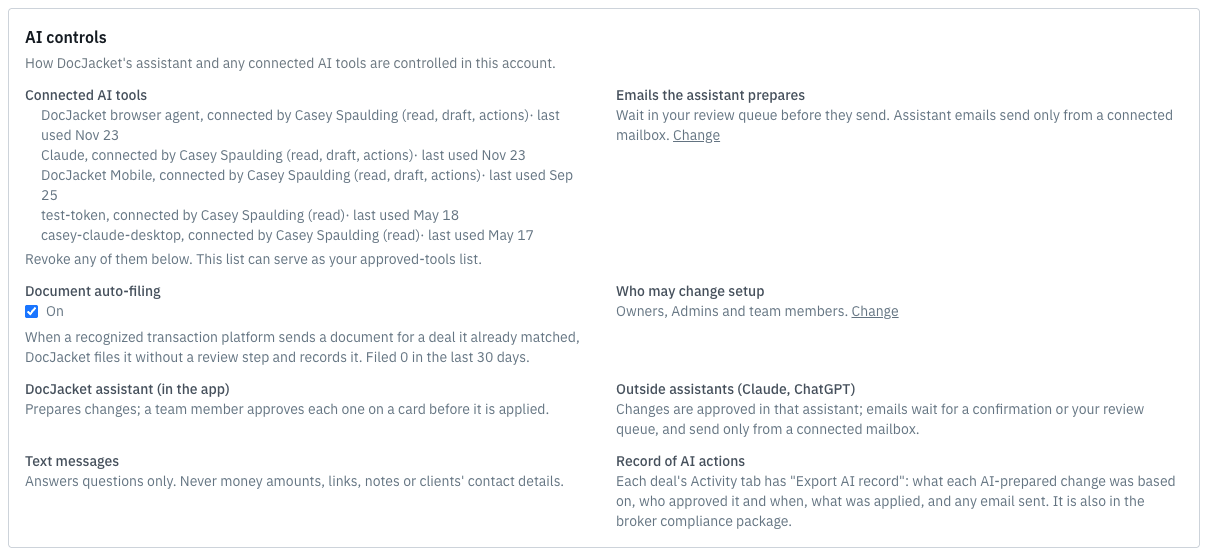
DocJacket's AI prepares work and your team approves it. This page explains the controls behind that, for owners, brokers and anyone reviewing DocJacket for their brokerage. You can see your own account's settings in Settings → API & AI access → AI, on the AI controls card.
What it does
The assistant reads the contracts, documents and emails your team gives it and prepares work: key dates, tasks, email drafts, setup changes and document filing.
Who approves
A team member reviews and approves each prepared change before it is applied.
Two things run without a per-item review, and you control both:
- Document auto-filing (on by default). When a recognized transaction platform, such as an e-signature or title company system, sends a document for a deal DocJacket has already matched, DocJacket files it on that deal without a review step. It only files a document that is already on the deal: it never sends anything, and every filing is recorded so it can be moved. Documents a person emails in always wait for review. Turn auto-filing on or off on the AI controls card. The card also shows how many documents it filed in the last 30 days.
- Playbook emails follow your Review emails before they send setting in Settings → Organization.
What it never does
- Pay for anything or change your plan or seats.
- See or change passwords or connected-account credentials.
- Delete your account or permanently delete deal data.
- Send from a mailbox nobody connected. Email the assistant prepares sends only from a connected Gmail or Outlook mailbox.
Whose access it has
The assistant acts as the signed-in team member, with that person's access, inside one company account:
- Members limited to their own deals see only those deals in the assistant, and can't connect outside AI tools.
- A connected AI tool works in one DocJacket account at a time. When it prepares a setup change, the preview names the organization it will change and who is approving it.
Outside AI tools (Claude, ChatGPT and others)
A team member connects them under Settings → API & AI access → AI:
- Every connection is listed on the AI controls card with who connected it, what it may do and when it was last used. You can revoke any of them there. The list can serve as your brokerage's approved-tools list.
- Changes are approved in that tool before they apply.
- Emails it prepares wait for a confirmation in the tool, or in your review queue, depending on your settings.
By text message
Texting the assistant is for questions only (see Text the Assistant). By text it never includes:
- money amounts, such as price, commission, fees or earnest money;
- links of any kind;
- notes, document text or email text;
- your clients' phone numbers and email addresses.
Contact details for the other agent, lender, title and escrow are included, so "What's the lender's number?" works.
Approving from email
The Morning Briefing email never approves anything itself. Its Review button opens the item in DocJacket, where you approve it while signed in, so every approval names the person who made it.
The record of AI actions
For each change DocJacket's AI prepared on a deal, DocJacket keeps:
- what it was based on, such as the quote and page of the contract;
- what was proposed;
- who approved or rejected it, and when;
- what was applied, including the value before the change;
- any email that went out: who it went to and the subject.
Changes applied by a setting, such as document auto-filing, say so and name no person. An action taken by DocJacket support while signed in to your account says that too. Setup changes made by the AI are kept for the life of your account.
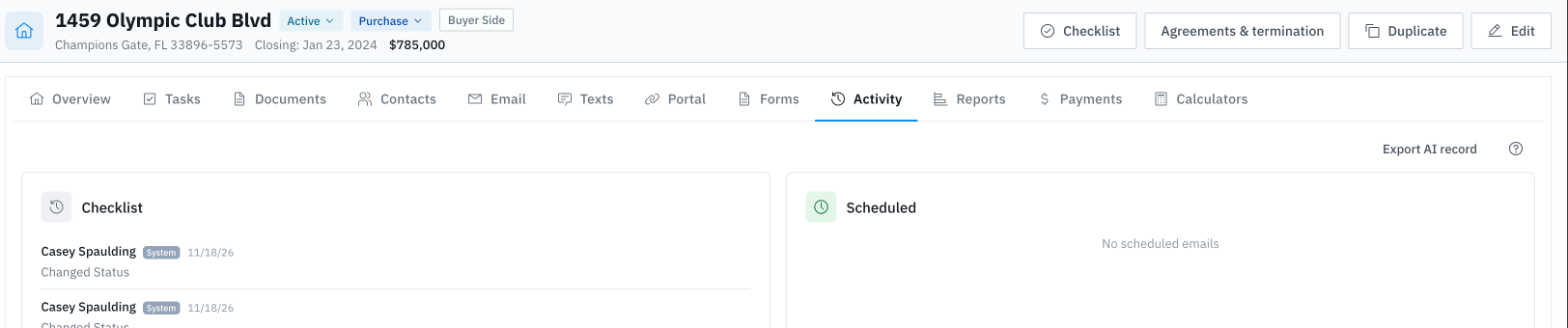
To export it: open the deal, go to Activity, and choose Export AI record. You get a spreadsheet (CSV) with subjects and recipients, never email bodies. Owners, admins and brokers can export it. The broker compliance package includes the same record as AI-Actions.csv.
What this is not
DocJacket supports your supervision; it doesn't replace it. Using DocJacket doesn't make a file compliant with any law, regulation or MLS rule.