What the Ask AI Assistant Can Do for You
Ask AI is the assistant inside DocJacket. Open it with Ask a question in the left sidebar. It answers questions, and it can also do work for you: fill in a form, complete or skip tasks, add a note, change key dates, check a deal for problems, and help set up your organization.
One rule holds for all of it: the assistant prepares, you approve. Nothing is saved until you press the form's own button or approve the change on a card.
It opens forms already filled in
Ask for something you would normally type into a form, and the assistant opens that form with the details filled in. For example:
- "Add a key date for the home inspection on Nov 20 at 10 AM."
- "Invite jane@example.com as a Transaction Coordinator."
- "Create a contact for Sam Lee at Example Title, sam@example.com."
It can fill in these forms:
| Form | Where it opens | The button you press |
|---|---|---|
| The task box | A deal's Tasks tab | Add |
| Create New Contact | A deal's Contacts tab | Create |
| Add Key Date | A deal's Overview tab | Create |
| New Contact | Your contacts | Create Contact |
| Invite Team Member | Settings > Team Members | Send Invite |
| New Email Template | Your email templates | Save |
When the form opens:
- A note at the top says how many fields the assistant filled in and which button to press. For example: "The assistant filled in 4 fields (marked). Check them, then press Send Invite."
- Each field it filled is marked with the words Filled in by the assistant. The mark goes away when you change that field.
- The note says when values may have come from outside your team. If the assistant had just read something like an email or an uploaded document, the note names it and asks you to check. For example: "Some values may have come from an email received Nov 9, so check them against the original." If it read more than three, the note names the first three and adds how many more, such as "…from a, b, c and 2 more, so check them against the original."
- Nothing is saved, sent or invited until you press the form's button. Change any field first, or close the form to drop it.
It won't overwrite what you're typing
If the form already has something typed in it, or is still saving, the assistant leaves it as it is. The line under its answer says why the form did not open and shows an Open it filled in button. Clear or close the form, or wait for it to save, then press Open it filled in.
A few limits
- Inviting a teammate is for owners and admins. The assistant never fills in the Owner role. If your organization has no free seat, it does not open the form; it takes you to Settings > Team Members, where you can see and manage seats.
- A view-only seat can't open a filled-in form. The assistant tells you so.
- A form that can't open at all. If the form never appears, the line under the answer reads "The form did not open, so nothing was filled in." Nothing was changed, so ask again.
It prepares changes for you to approve
When you ask for a change, the assistant puts it on a card under its answer. For example, it can prepare:
- Adding, renaming, rescheduling or reassigning tasks
- Completing, skipping or reopening tasks (see below)
- Moving a key date, or marking it done, waived or not applicable
- Adding a key date, changing its details, resetting or recalculating dates, and more (see Key dates)
- Adding, editing, pinning or removing an internal note (see Internal notes)
- Adding someone to a deal, taking them off, or moving them to another role
- Restoring an archived deal (see below)
- Deleting tasks. Their subtasks go with them, and their unsent reminders, scheduled follow-up emails and review drafts are cancelled. See Deleting tasks.
The card's heading reads Ready to do — nothing happens until you approve. On the card:
- Approve all applies everything on the card.
- Dismiss on a row leaves that change out. Dismiss all drops the whole card. Nothing changes either way.
- Edit appears on a row you can adjust before you approve it.
- After you approve, Show me takes you to where the change landed and points at it.
- When a change can be undone, its row shows Undo after you approve it. For example, taking someone off a deal can be undone for 7 days.
If your seat is view-only, the card says "Your seat is view-only, so this can't be applied."
Completing, skipping or reopening tasks
Tell the assistant what happened, and it puts the change on a card. For example:
- "Mark the inspection tasks done."
- "Skip the appraisal tasks. It's a cash deal."
- "Reopen the title order task. I closed it by mistake."
One card can cover up to 25 tasks on one deal. You can say when a task was done if it wasn't today, and add a note or a reason for skipping.
The card says what else happens before you approve, the same things that happen on the Tasks tab:
- Completing unblocks tasks that were waiting on these, closes a linked key date once its last task is done, runs your task-completion rules, notifies the assignee, and starts any follow-up emails linked to the tasks. Those emails follow your email review setting. Pending reminders for the tasks go out or stop. If your client portal shows completed tasks, a task that shows there will show as done.
- Skipping lets waiting tasks start without moving their dates, and sends nothing. Follow-up emails timed to the tasks stop while they're skipped, and any waiting in your review queue are withdrawn.
- Reopening puts linked key dates back to open, and tasks dated from these tasks go back to their planned dates. An email already sent stays sent. Reopening a task that was skipped can send a follow-up email that came due while it was skipped. If your team reviews emails first, that email waits as a draft instead.
A task that is already completed can't be skipped (or the other way round) until it is reopened. Tasks that are already the way you asked are left as they are.
If some of the tasks changed after the card was made, the ones that changed are left alone, and the finished card names them. For example: "Completed 2 of 3. Left as it was: Order title (changed after the card was made)."
The assistant can see a deal's completed and skipped tasks as well as its open ones, so you can ask about a task that's already closed, or ask to reopen one.
For what Undo does on these cards, see Undo and what can't be undone.
Internal notes
Ask the assistant to add a note to a deal, and it shows the note on a card first. For example:
- "Add a note that the buyer wants a Friday closing."
- "Pin the note about the lender call."
It can add, edit, pin, unpin, remove and bring back a deal's internal notes. The card shows:
- The note, which you can edit before you approve.
- Seen by: "Your team only. Clients and agents never see notes on the portal." Notes are never emailed.
- Transaction Summary: "Included only when its template has Internal Notes."
- Written as: a note the assistant adds shows as Assistant for your name.
You can edit, remove or bring back only notes you wrote, including ones the assistant added for you. Removing a note archives it; it isn't deleted.
The assistant can't add or change comments on a task or a document. Add those from the task's drawer or the document's preview.
Key dates
Beyond moving a date or marking it done, waived or not applicable, the assistant can:
- Add key dates, up to 10 at a time, with or without a date, time or location. "Add a key date for the final walk-through on Dec 18 at 4 PM."
- Change a key date's name, notes, time or location.
- Reset a hand-set date to the date its rule gives.
- Recalculate the deal's dates from the dates they are counted from. Hand-set, completed and not-applicable dates stay as they are.
- Reorder the key dates on the deal.
- Link a task to a key date, or unlink it.
- Apply or dismiss suggested date changes that are waiting on the deal. You can choose which dates to move.
It runs the same steps as the deal page's own controls, so dependent dates, linked tasks, reminders and scheduled emails move the way they do there. The card lists the dates and tasks that will move before you approve.
If guests already have a calendar invite for a date that moves, they get an update email. The card says so, and Undo can't take that email back.
The assistant never deletes a key date. To take one off a deal, it marks it not applicable.
If the dates on the deal change after the card was made, approving is refused and nothing changes. Ask again to get a fresh card.
Deleting tasks
When the assistant prepares a task deletion, the subtasks of those tasks are deleted with them. Their unsent reminders, scheduled follow-up emails and review drafts are cancelled.
Undo on the card works for 7 days. The tasks come back with their subtasks, notes, comments and follow-up email setup, and the card then shows Undone. Emails and reminders that were cancelled stay cancelled, and undo sends nothing.
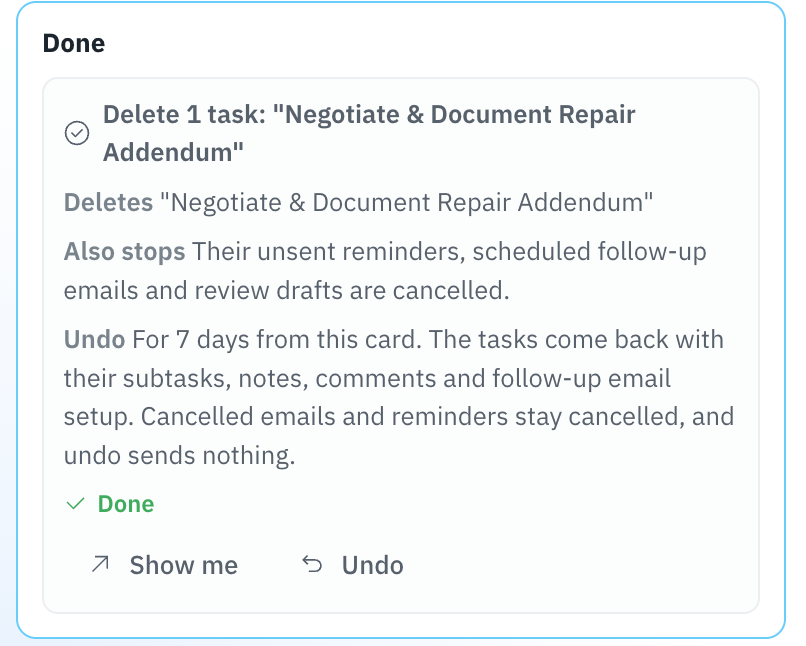
Undo is only on the card. The Delete button on a deal's Tasks tab has no undo.
Asking about a task
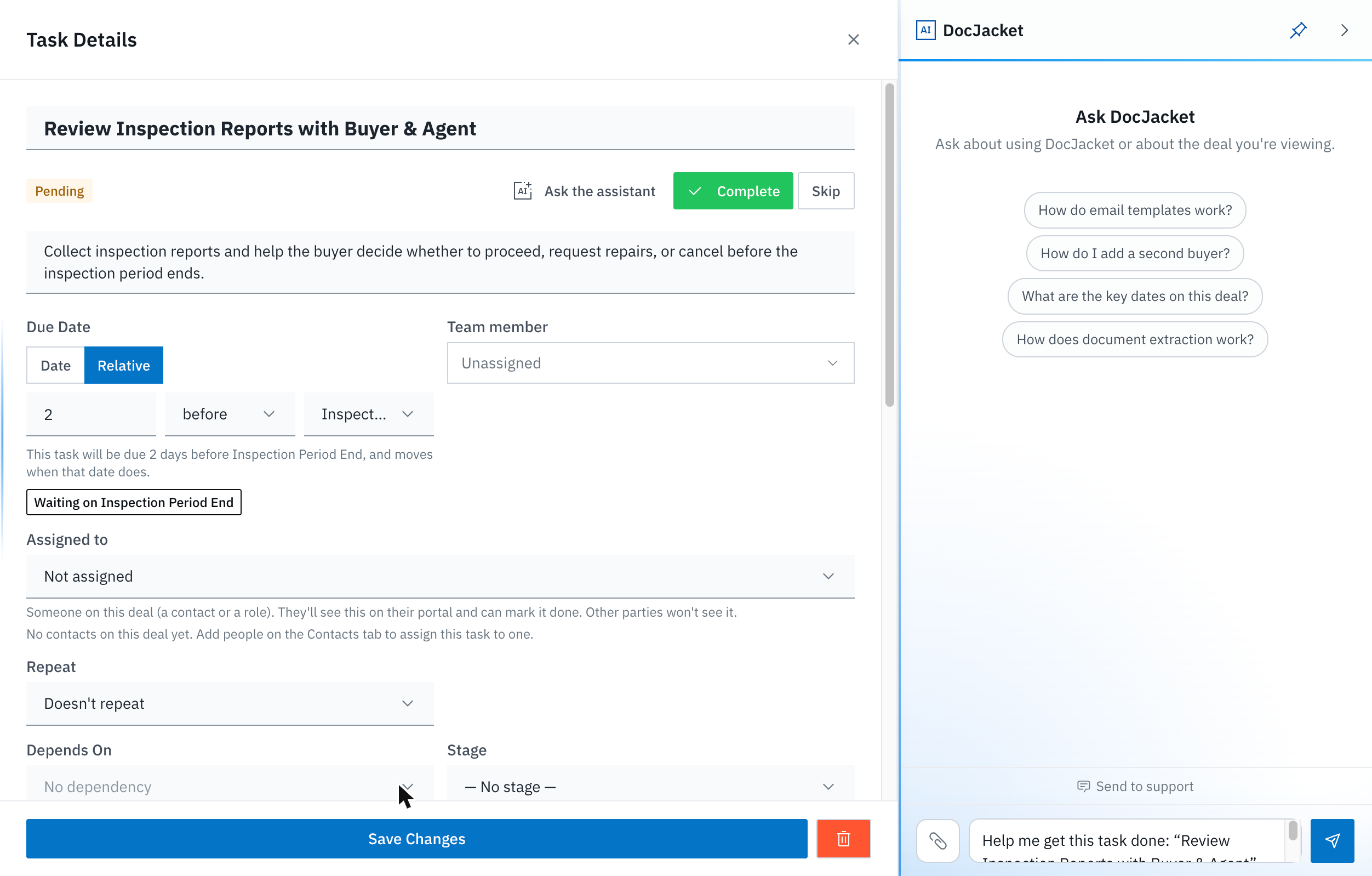
Open a task on a deal's Tasks tab and click Ask the assistant in the task's drawer. Hover text on the button reads "Open Ask AI about this task. Nothing changes until you approve it." Ask AI opens with this in the message box: Help me get this task done: "[the task name]". Tell me what it needs, and propose anything you can do for me to approve. Nothing is sent until you press Send. View-only seats see the button too, because asking changes nothing.
Questions about a deal's notes, email and texts
On a deal, Ask AI can look up the deal's internal notes, email, text messages, scheduled sends, consistency checks, change history, key-date history, agreements, and TC fees and invoices. Use it for questions like "What did the lender say in the last email?" It only reads. It doesn't mark an email as read or change anything on the deal, and it never shows payment links. It reads the deals you can see; if your role is limited to your own deals, that means the deals you are on.
AI apps you connect to DocJacket can read the same parts of a deal. See AI Access.
"Is anything wrong with this deal?"
Open a deal and ask "Is anything wrong with this deal?", or say what looks off ("Why is the appraisal showing overdue?"). The assistant checks the deal's key dates, its open tasks, its side and agents, and the people on it. Then it tells you what it found and shows you where. If it finds nothing wrong, it says so.
Things it looks for include:
- An overdue key date. It asks whether it was done, waived or doesn't apply, then puts that on a card for you to approve.
- A contract-start date, such as the Effective Date. These record when something happened. They are never overdue, and nothing needs doing.
- Key dates that look like duplicates. You decide which to keep.
- A key date waiting on open tasks. It completes by itself once every task linked to it is completed or skipped.
- A deal with no side set, or no agent on your side.
- Why a person is on the deal, or why someone shows as the agent.
An archived deal is named first. If the deal is archived, the answer starts by saying "This deal is archived" instead of reporting that nothing is wrong, and it offers a Restore card.
Restoring an archived deal
Ask the assistant to bring an archived deal back, and it puts up a Restore card for you to approve. Nothing on an archived deal can be changed until it is restored. So if you ask for another change on an archived deal, the assistant offers the Restore card first; approve it, then ask again.
Restoring with the assistant does the same thing as the Restore transaction button. See Restoring an Archived Transaction.
What comes back:
- The deal returns to your transaction list with its documents, text threads and Review queue drafts.
- Client portal links that archiving turned off work again. The card reminds you: "This gives people outside your team access to the deal again."
What does not come back:
- Tasks stay skipped. Tasks that archiving skipped stay skipped until you reopen them.
- Key dates stay Not applicable. Dates that archiving marked Not applicable stay that way until you change them.
- Scheduled emails stay cancelled. Emails that were scheduled when the deal was archived were cancelled and are not sent. To send one, schedule it again on the deal's Email tab.
Undo: after you approve, Undo on the card archives the deal again for 7 days, unless a task is reopened or an email is scheduled on the deal first.
Restoring is not limited by your plan.
Email templates
In any conversation, ask the assistant to write an email template and it opens the New Email Template page with the name, category, subject and body filled in. Read every field, fix what you want, then press Save. This is for owners, admins, and teammates allowed to edit Playbooks and settings.
The setup assistant (see Set up with the assistant) can also write a new template, change one of yours, or install DocJacket's starter email packs, and save it from a card:
- You see the email before anything is saved. The card shows it filled in on one of your deals (Previewed on), or with sample values. Open in editor opens it in the template editor.
- DocJacket's own emails are never changed. Asking to change one gets you your own copy, and DocJacket's original stays as it is. If you already have a copy, the assistant changes your copy instead of making a second one.
- Starter packs skip what you already have. A template you already have by the same name is skipped, never replaced.
- The next automatic email waits once in your Review Queue. When the assistant creates a template, copies a DocJacket email, or rewrites a template's subject or body, that template's next automatic email waits in your Review Queue so you can check it. Installing a starter pack adds no such wait.
- A new template is Active as soon as it is saved.
- Undo for 7 days. A saved change can be undone from its card for 7 days, unless the template was edited since. Undo never changes emails already sent. Undoing a new or copied template turns it off (it then shows as Draft) instead of deleting it. Undoing a rewrite brings back the old text.
Draft templates are found, not duplicated
The assistant searches your Draft (turned-off) templates as well as your Active ones. If a Draft template already has the name you want, the assistant tells you it's a Draft and offers to change its text or use another name. It won't make a second template with that name.
Changing a Draft template's text keeps it a Draft. The assistant can't turn a template on; use the Active/Draft switch at the top of the template editor when you're ready.
See Email Templates for building templates by hand.
Set up with the assistant
The setup assistant helps you get your organization set up, one step at a time, with each change shown on a card for you to approve.
Starting it
- From an answer. Ask Ask AI for setup help, such as "Help me get set up" or "Set my default TC fee to $350". The answer carries a Set up with the assistant button just above it. Press it and the setup assistant picks up your request in the same conversation.
- From Settings > Organization. Click Set up with the assistant at the top of the page.
- From your dashboard. While required setup steps are still open, your dashboard may show a card offering to set DocJacket up with the assistant. Click Start.
While it is running, the Ask AI panel's header shows Setup assistant.
What it does
- It starts with your Primary State. If your organization doesn't have one yet, the setup assistant asks which state you mainly work in.
- When most of your deals are in one state, it offers that state as a button with the number of deals, such as Florida (431 deals), beside Another state. It does this when at least 80% of your deals that have a state are in that one state. Pick the state and the change appears on a card marked "nothing happens until you approve". Approve it, and use Undo on the card if you change your mind.
- Another state, or no state with a clear majority, takes you to Settings > Organization with the Primary State dropdown highlighted. Choose your state there and click Save Primary State.
- It never offers a state taken from a single address, contract, Playbook or client agent.
- With no deals yet, it focuses on your first contract. You can upload it, or email it to your new-deal intake address.
- It can prepare these changes: your Primary State, your default TC fee, a client agent's fee or coordinator, your contact roles and document categories, and your email templates. It never makes up a fee: it proposes your default TC fee only when you state the amount, and a client agent's fee only when you state it or your deals suggest one.
- It doesn't ask whether someone is your client agent. Once you have a real deal, its first card proposes you as coordinator for the client agent with the most deals, plus a fee only when your deals suggest one. Approve it to say yes, or Dismiss it if that person isn't one of your agents.
- Archiving a contact role or document category hides it; it never deletes it. Deals that already use it keep it. DocJacket's own roles can't be changed; the assistant offers your own copy instead.
- For things it can't change itself, such as connecting your email account or your email safety settings, it takes you to the right page and points at the control.
Who can use it
Setup is for an owner or admin, or a teammate the owner has allowed to edit Playbooks and settings. A member whose account is limited to their own deals can't use it.
If you ask for setup and can't use it, the answer says why and who can, naming up to three of your organization's owners and admins.
The setup assistant works for an organization on a paid plan, including while the paid plan is in its free trial, and on a complimentary plan. On the Free plan, it is included in an organization's first 30 days while its required setup steps are still open, up to the included usage.
Leaving setup
Press Leave setup at the top of the Ask AI panel. This clears the setup conversation, and Ask AI goes back to answering as usual. Leaving does not undo changes you already approved.
When a search finds nothing
When the assistant looks something up and finds nothing, it tells you that nothing matched that search, not that the thing doesn't exist. It also says when part of your account was left out:
- Team members: a search of your team covers active members unless the assistant searches again to include inactive ones.
- Contacts: deleted contacts are not searched.
- Email templates: searches include both Active and Draft (turned-off) templates.
Undo and what can't be undone
After you approve a card, most changes show Undo on the card for 7 days.
| Change | Undo on the card |
|---|---|
| Completing tasks | Yes, for 7 days. It reopens them. Emails already sent stay sent, and tasks, reminders or notifications the completion created stay. If completing closed a key date early and that moved other key dates, Undo doesn't move them back. |
| Skipping tasks | Yes, for 7 days. It reopens them. Withdrawn review emails don't come back. |
| Reopening tasks that were skipped | Yes, for 7 days. It skips them again. |
| Reopening tasks that were completed | No. To close one again, complete it, which runs the completion steps again. The card says so. |
| Deleting tasks | Yes, for 7 days. See Deleting tasks. |
| Adding, editing, pinning, removing or bringing back a note | Yes, for 7 days. |
| Adding key dates | Yes, for 7 days. Undo marks them not applicable; they aren't deleted. |
| Changing a key date's name, notes, time or location | Yes, for 7 days. |
| Resetting a hand-set date | Yes, for 7 days, when the key date had a date before. It puts that date back as a hand-set date. |
| Reordering key dates, or linking or unlinking a task | Yes, for 7 days. |
| Recalculating the deal's dates | No. Each date can still be changed by hand. The card says so. |
| Applying or dismissing suggested date changes | No. The card says so. |
Undo never unsends an email or a calendar update that already went out.
What the assistant won't do
Some things stay with you, even if you ask and would approve:
- Billing and seats. It never buys a seat or changes your plan. If an invite needs a seat you don't have, it takes you to Settings > Team Members.
- Passwords and connections. It doesn't connect your email account or handle sign-in details. It takes you to the page where you do it.
- Deleting your account. It has no way to delete your account or organization.
- Changing what clients see on the portal. It doesn't change which tasks or notes show on the client portal.
- Permanently deleting deals, contacts, key dates, notes or email templates. Taking someone off a deal can be undone for 7 days, and their contact record is kept. Removing a note archives it. To take a key date off a deal, it marks it not applicable. Undoing a new template turns it off instead of deleting it.