Email Templates
Email templates let you reuse common email content while composing transaction messages. Templates can fill the subject, body, recipients, smart fields, and configured document attachments.
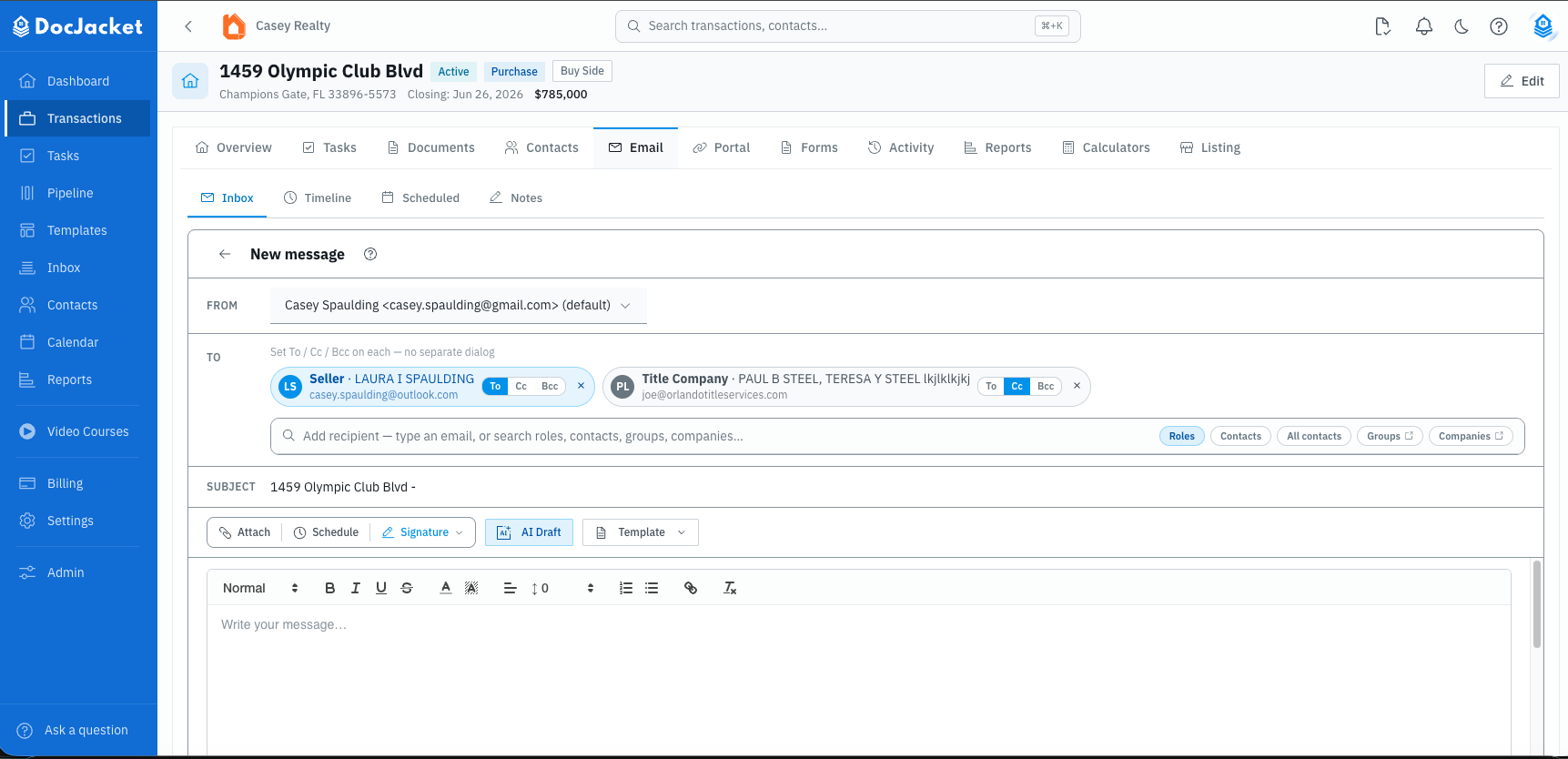
Using a template
When composing an email in a transaction:
- Open the transaction
- Go to Email > Inbox
- Click Compose
- Click Template
- Search for and select the template you want
- Review the filled subject, body, recipients, and attachments
- Fix any missing values or unresolved smart fields
- Send, schedule, or save the email as a draft
Smart fields are replaced with the transaction's current data when the template renders.
Creating a template
- Go to Templates > Email Templates
- Open My Email Templates
- Click New Template
- Add template settings such as category, side, audience, stage, and tone
- Write the subject and body
- Insert smart fields or smart-field groups
- Configure recipient roles or recipient rules if needed
- Select document categories to auto-attach if needed
- Preview, send a test email, and save
DocJacket templates are read-only. Copy one into My Email Templates before customizing it.
Generate or import a template with AI
The template editor includes an AI Generator with two modes, so you don't have to write a template from scratch:
- Generate — describe the email you want (for example, "Welcome email for new buyers"), pick a tone, and DocJacket writes a draft subject and body for you, inserting smart fields where they fit.
- Import — paste an existing email from another tool, or upload a draft as a PDF,
.txt, or.mdfile. DocJacket converts it into a template, mapping the merge tags in your original (like[Buyer Name]) to DocJacket smart fields.
Check anything the AI produced before you save — confirm the smart fields mapped to the right data, and send a test email before using the template with clients.
Smart fields
Smart fields use double-brace syntax:
{{buyer_name}}{{seller_name}}{{property_address}}{{closing_date}}{{agent_name}}
Smart fields work in both the subject and body. See Smart Fields for the full library, groups, and conditional content.
Contact blocks
A contact block is a special smart field that drops in a formatted contact card — name, email, phone, and company — for one party on the deal. It only shows the fields that are filled in, so you never get blank lines. Insert one from the smart-field picker rather than typing it by hand.
Contact blocks are available for the common parties on a transaction, including:
- Buyer and Seller
- Listing Agent, Buyer Agent, Deal Agent, and Co-Agent
- Lender, Loan Officer, and Loan Processor
- Title Company, Title Processor, Escrow Officer, and Escrow Assistant
- Buyer's Attorney and Seller's Attorney
- Home Inspector, HOA Contact, Co-op TC, and others
If a party isn't on the deal yet, its contact block simply renders nothing — so it's safe to include in a reusable template without leaving blank labels behind.
Missing values
If a valid smart field does not have data on the transaction, DocJacket can show a missing-variable warning. Update the transaction data or edit the email before sending.
If a placeholder is not recognized, fix the template syntax before using it with clients.
Tips
- Create templates for common emails: introduction to title company, inspection scheduling, closing reminders, status updates
- Link email templates to tasks for automated sending
- Use Draft status while testing a new template
- Send a test email before activating templates with conditions or auto-attached documents
Refresh transaction data in a draft
Save the transaction's date changes first. In the template-based composer, click Refresh. The tooltip says “Refresh the transaction data in this email draft.” This rerenders the template's subject and message with the latest saved transaction values, replacing any edits to that text. Your recipients, attachments, and selected signature stay as they are. An open draft does not update automatically, and refresh never sends the email.
Older drafts may store the signature inside the message instead of separately. Refresh is disabled for those drafts to protect the saved signature. Update their dates manually or start a new email from the template.