Task automations: draft-and-review
Here's where the Playbook and the email library connect — and where most people either under-use automation or set it up to fire blindly. The expert approach is draft-and-review: preconfigure the repeatable email work on the Playbook template, then review or adjust it on the live transaction before anything goes out.
How it works
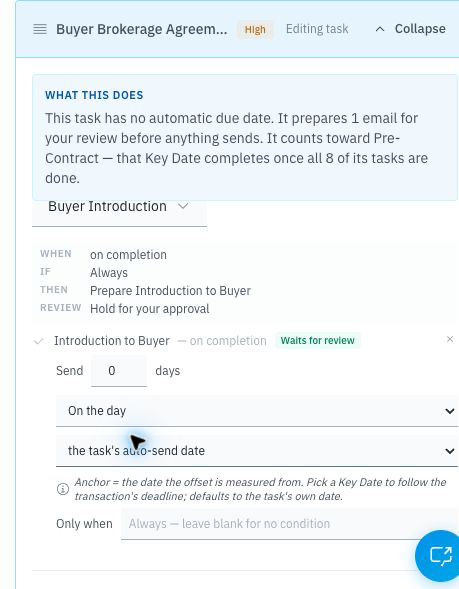
Wire an email template to a Playbook template task with an "on completion" trigger. When that Playbook is applied to a transaction, the live task carries the linked email with it. You can also open the task's Task Details drawer on the transaction and add, remove, or edit linked emails for that deal only.
Then, when a configured task is ready to send — either from the task drawer's View action or from the completion flow — DocJacket:
- Picks the right email template
- Resolves the recipients by role for this deal
- Fills in the smart fields from the deal record
- Attaches the relevant documents
- Keeps the final send step in front of you
You glance at it, tweak if needed, and send. If a live task shows Task Emails (0), completion will not prompt or create an email for that task.
Playbook template task → On-completion email rule
                        → Applied live task shows Task Emails
                        → Review merged email
                        → Send when ready
Keep it draft-and-review — don't auto-send
DocJacket lets you require review before anything goes out. Leave that on.
Automation should compute and propose, not send behind your back. The draft saves you the tedious part — choosing the template, the recipients, the smart-field data, the attachments. The review keeps you in control of the part that matters: a final human look before a client or agent hears from you. That's how you get high email volume and near-zero mistakes.
Our most active coordinator has hundreds of these automations across their templates — and every single one is set to require review. None auto-send.
The one mistake to avoid: don't automate internal tasks
Only wire an email rule to a task that genuinely sends to an external party (an agent, client, lender, or title officer).
Do not put email automations on internal or status-only tasks — things like "Splits sent to closer," "Escrow confirmed," or a step you use just to mark progress. Those don't have anyone to email, so they create clutter and make the review workflow noisier.
If completing the task wouldn't normally make you send someone an email, don't attach an email automation to it.
Wire an automation
- Open a Playbook template and select a task.
- Open the task's On completion automation section.
- Link the email template that should be prepared when the task is completed.
- Confirm the role-based recipients, smart-field coverage, and any document attachments.
- Leave Require review before sending on.
- Save the Playbook template.
After the Playbook is applied to a transaction, open that task from the transaction's Tasks tab. The Task Details drawer shows the inherited emails under Task Emails. From there, you can click View to review the merged message, or link another email template for this one transaction.