Archiving a Transaction
Archiving takes a deal out of your working list without throwing anything away. The record, its documents, its email history, and its activity log all stay in DocJacket — they just stop crowding the Transactions page and your daily queues.
Reach for it when a deal is genuinely finished with — closed and reconciled, or dead and not coming back — and you want a clean list.
How to archive a transaction
Three ways, all the same action:
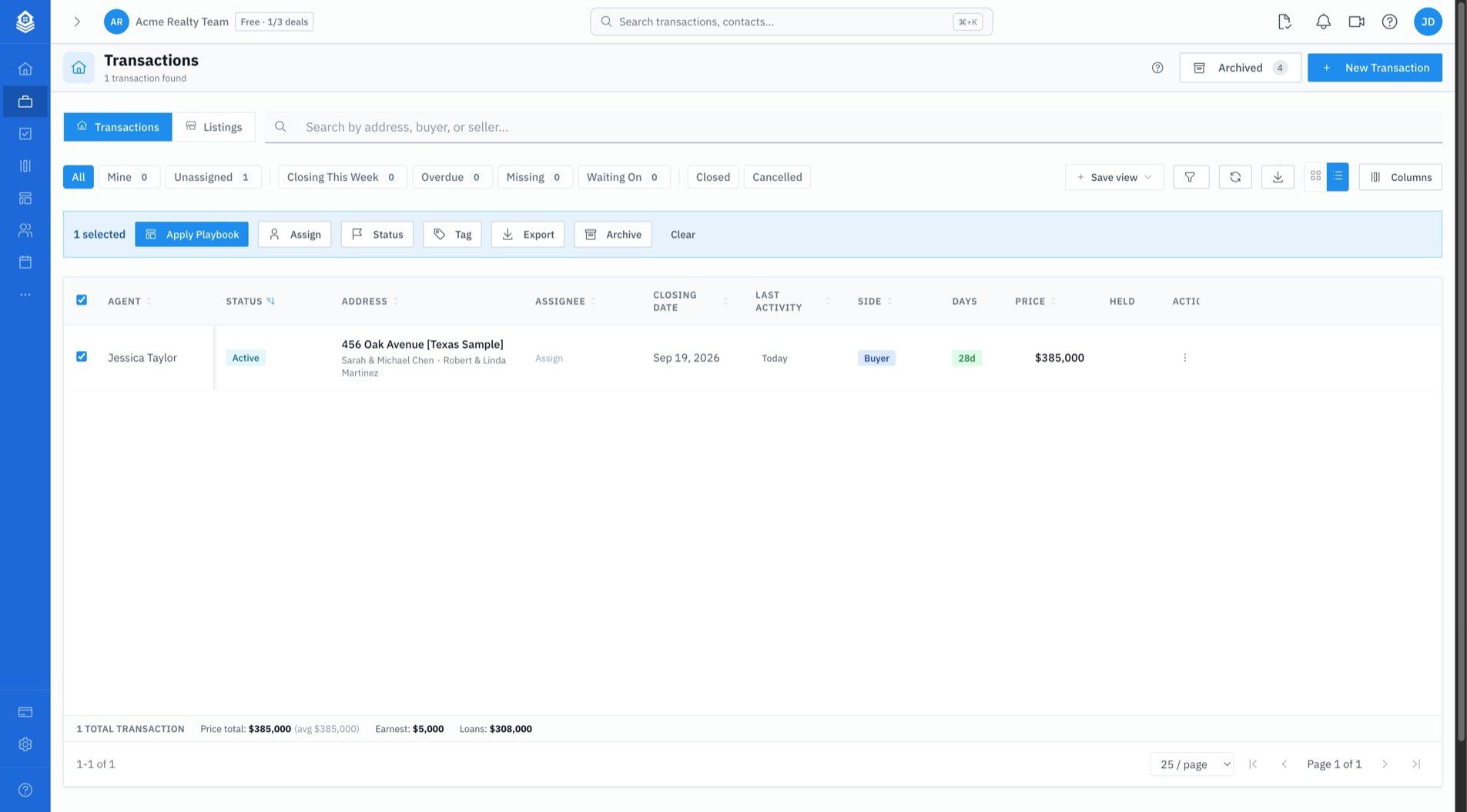
- From the Transactions list — tick the checkbox on one or more rows, then click Archive in the bulk-action bar
- From a row's ⋮ menu — open the three-dot menu at the end of any row and choose Archive
- From the transaction's Edit form — open the deal, click Edit, and use Archive Transaction in the footer
What happens when you archive
Archiving is not just a filter. DocJacket winds the deal's live work down so it stops producing tasks, reminders, and client-facing activity. Every change below is scoped to that one transaction — nothing cascades to any other deal.
- Pending key dates are marked Not Applicable (Completed, Waived, and already-N/A dates are left alone)
- Open tasks are marked Skipped, noted "Transaction archived"
- Every task on the deal — including the completed ones — is hidden from your task list and calendar
- Unsent scheduled messages are cancelled
- Pending scheduled emails are deleted (email you already sent is kept, so your send history stays intact)
- Waiting Review queue proposals are expired
- Client portal links are revoked
- Documents and text-message threads on the deal are archived along with it
DocJacket stamps the date it happened, so an archived deal tells you when it was archived rather than just showing a state.
Revoking the portal link is the one change anyone outside your office notices. If a buyer, seller, or agent is still using the portal to watch the timeline or download documents, hold off on archiving — their link stops working the moment you do. Restoring the deal reactivates it, but it is dead in between.
Archive, cancel, or delete?
These are three different tools, and they answer three different questions.
| Action | What it does | Reversible? |
|---|---|---|
| Cancel or Close (a status change) | Marks what happened to the deal. Winds pending work down, and a Closed status also fires your closed-stage automation and CRM push. The deal stays in your list | Yes — move it back to an open status |
| Archive | Decides whether you want to look at it. Winds pending work down and hides the deal from the active list. Everything is kept | Yes — Restore |
| Delete | Removes the deal from every list, including the Archived view | No — not from the app |
Cancelling and archiving are not alternatives; most coordinators use both. Cancel or close the deal when it ends, then archive it later — at month end, or whenever the list gets long — once you're sure you're done referring back to it.
See Cancelling or Closing a Transaction for how terminal statuses work, and Restoring or Deleting an Archived Transaction for the way back.
If your office has archival turned on, closing a deal also writes an immutable, retention-protected copy for compliance — see Security & Privacy. That's a separate mechanism from the Archive button here, which is about tidying your working list.
Finding archived deals later
On the Transactions page, click Archived in the top right. The button carries a count badge, so you can always see how many are back there. To return, click Active Transactions.
Archived deals are left out of your active-deal count and your dashboard totals, which is usually the point — they stop inflating the numbers you use to judge your workload.
Nothing expires. An archived deal stays exactly as you left it until you restore it or delete it.