Creating Tasks
There are several ways to add tasks to a transaction. Use quick add for one-off work, apply a Playbook when you want a full saved workflow, or let DocJacket suggest tasks from the transaction.
Quick add
The fastest way to create a single task is from a transaction's Tasks tab.
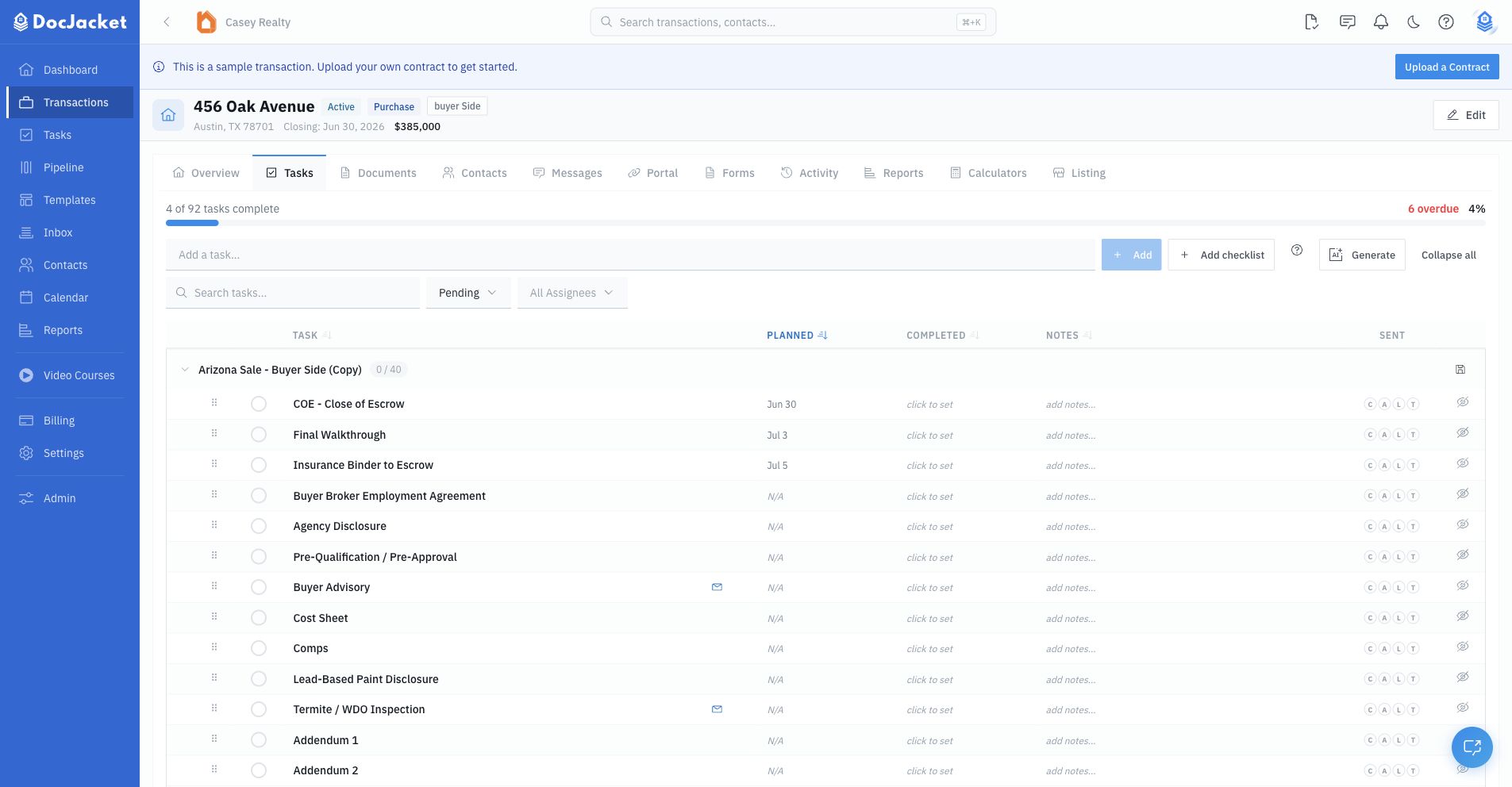
- Type a task name in the quick-add bar
- Press Enter or click Add
- The task is created with Medium priority by default
Click the task name or edit icon to open the detail drawer and add the due date, assignee, dependency, instructions, portal visibility, email automation, reminders, task options, and comments.
Detail drawer
Click any task to open the detail drawer on the right side. The main fields are:
- Name and description — What needs to be done
- Due date — When it's due
- Assignee — Who's responsible
- Depends On — Another task that should be finished first
- Instructions — Detailed notes or steps
The drawer also includes sections for subtasks, task email templates, scheduled emails, reminders, portal visibility, task options, comments, and read-only completion info.
The Key Date task option highlights that task as an important date-style item in task and calendar views. It is not the same as assigning a governed Key Date Type to the transaction's closing timeline.
Repeating tasks (recurring weekly tasks)
Yes, you can make a task recur on the same day each week. Use it for work that comes around on a schedule: a weekly compliance check, a Friday update email to the client, a Monday file review.
In the task drawer, set Repeat to Weekly or Every 2 weeks, then pick the day in On (Monday through Sunday). Doesn't repeat turns it off. The Due Date is the next occurrence; the repeat setting decides how the task renews.
How a repeating task behaves:
- One occurrence is open at a time. When you complete the task (or skip it), DocJacket creates the next one, due on the next matching day. If you finish late, the next one lands on the next upcoming day instead of piling up missed weeks.
- The series stops when the deal is closed, archived, or deleted.
- Each new occurrence keeps the task's setup: assignee, portal visibility, reminders, and linked task email templates. That's how "email the client an update every Friday" works. Notes, completion details, dependencies, and one-time auto-send dates are not carried over.
- Subtasks can't repeat.
- In the task table, a repeating task shows a small repeat icon. Hover over it to see the schedule and which occurrence it is (for example, Repeats weekly on Friday · #4).
To put a repeating task on every deal, set Repeat on the task in your Playbook. See Repeating tasks in a Playbook.
From a Playbook
Use a Playbook when you want a repeatable set of tasks and date rules.
From a transaction's Tasks tab:
- Click Add Playbook
- Select one or more Playbooks
- Apply the selected Playbook
DocJacket adds the Playbook's tasks and keeps them grouped under the Playbook name. If the Playbook includes due-date rules, those dates are calculated from the transaction's existing key dates.
The Tasks tab picker can apply multiple Playbooks. Use it when you mainly want saved task workflows. To create or replace the transaction's key-date timeline and linked task workflow from one Playbook template, use Generate Timeline on the transaction Overview.
See Playbooks for more.
AI-generated
Click Generate on the transaction's Tasks tab to let DocJacket suggest tasks for that transaction. Review the suggestions, select the tasks you want, and click Add Selected.
See AI Task Generation for details.
Working in the task table
The transaction Tasks tab shows tasks in Playbook sections. Each section shows completed and total task counts, and each row includes the task name, due date, completed date, notes, sent indicators, and portal visibility.
You can:
- Search tasks by name
- Filter by status or assignee
- Sort by task, due date, completed date, or notes
- Resize the table columns
- Select multiple tasks for bulk complete or bulk delete
- Drag rows to reorder them - see the next section for the setting that turns dragging on
- Save a Playbook section as a new Playbook template
Reordering tasks - and why it won't let you drag them
If you try to rearrange tasks and the rows won't move, dragging isn't broken - it's off because your office orders tasks by due date. The switch is Settings > Organization > Order tasks by:
- Due date - soonest first (the default) - whatever's due next is at the top. Drag-reorder is off in this mode, because a hand-placed position would be undone by the date sort the moment the list refreshes.
- My Playbook order - the sequence you built in your Playbook, for when the order of the work matters more than what's due next. This is also what turns on drag to reorder on a deal's Tasks tab.
On due-date order, the Tasks tab shows an Enable drag reorder link that jumps straight to that setting. The choice is office-wide and applies everywhere tasks are listed - the deal's Tasks tab and the client / agent portal - so what you see and what your agent sees always match.
Changing row order never changes due dates.
Task email and reminder timing
Task email templates can be linked from the task drawer. Linked emails can be reviewed and sent from the task, or scheduled with an auto-send date. When an auto-send date is not set, DocJacket uses the task due date as the scheduling anchor.
Scheduled emails are client-facing emails tied to a date. Reminders are internal notification prompts for the task. Calendar visibility depends on task due dates, organization calendar settings, and the transaction's calendar-sync toggle.