Playbooks
Playbooks define the reusable workflow for a transaction type. A Playbook can include Key Dates, Tasks, and Automations so a new transaction starts with the right deadlines, task list, and prepared emails.
If you set your workflow up before August 2026, or you're following older notes, this is the same feature under a new name. Templates → Playbooks is where your checklists live — nothing was moved or lost, and your existing ones are all under the My Playbooks tab.
Is a checklist different from a Playbook?
No. It's the same feature, renamed in August 2026. There is no separate checklist object and no "checklist inside a Playbook." What used to be called a checklist is now called a Playbook.
One Playbook holds everything for a deal type:
- Key dates
- Tasks (with phases, due-date rules, and repeating schedules)
- Automations (emails, texts, and key-date reminders)
- Required documents: attach one or more Required Documents Lists in the Playbook builder's Required documents section
You don't need to bundle a checklist and a document list together, because the Playbook already holds both. If you see older notes about "checklists and Playbooks" as two different things, or about Playbooks being a folder that wraps a checklist, those describe an older setup.
"I don't see Checklists on the Templates page"
If you are looking for Checklists and don't see that card on the Templates page, you're in the right place — that card is now Playbooks. It sits at the top of the Templates page with a Formerly Checklists label next to its name, above the Communication section that holds Email Templates and Email Signatures.
Your saved checklist templates are all inside it, under the My Playbooks tab. Nothing was moved or lost, and no plan or permission level hides the Checklists page — if you can see Email Templates, the Playbooks card is on the same page.
The key idea:
- Key Date Library defines reusable date rules
- Playbooks bundle those key dates with tasks and automations
- Transactions apply a Playbook to create real key dates and real tasks
This is the same product category as a reusable date-template workflow: set the date logic once, then apply it to future transactions. In DocJacket, that logic lives in the Key Date Library, and the Playbook adds the work that depends on those dates.
Playbook list page
Go to Templates → Playbooks to manage Playbook templates.
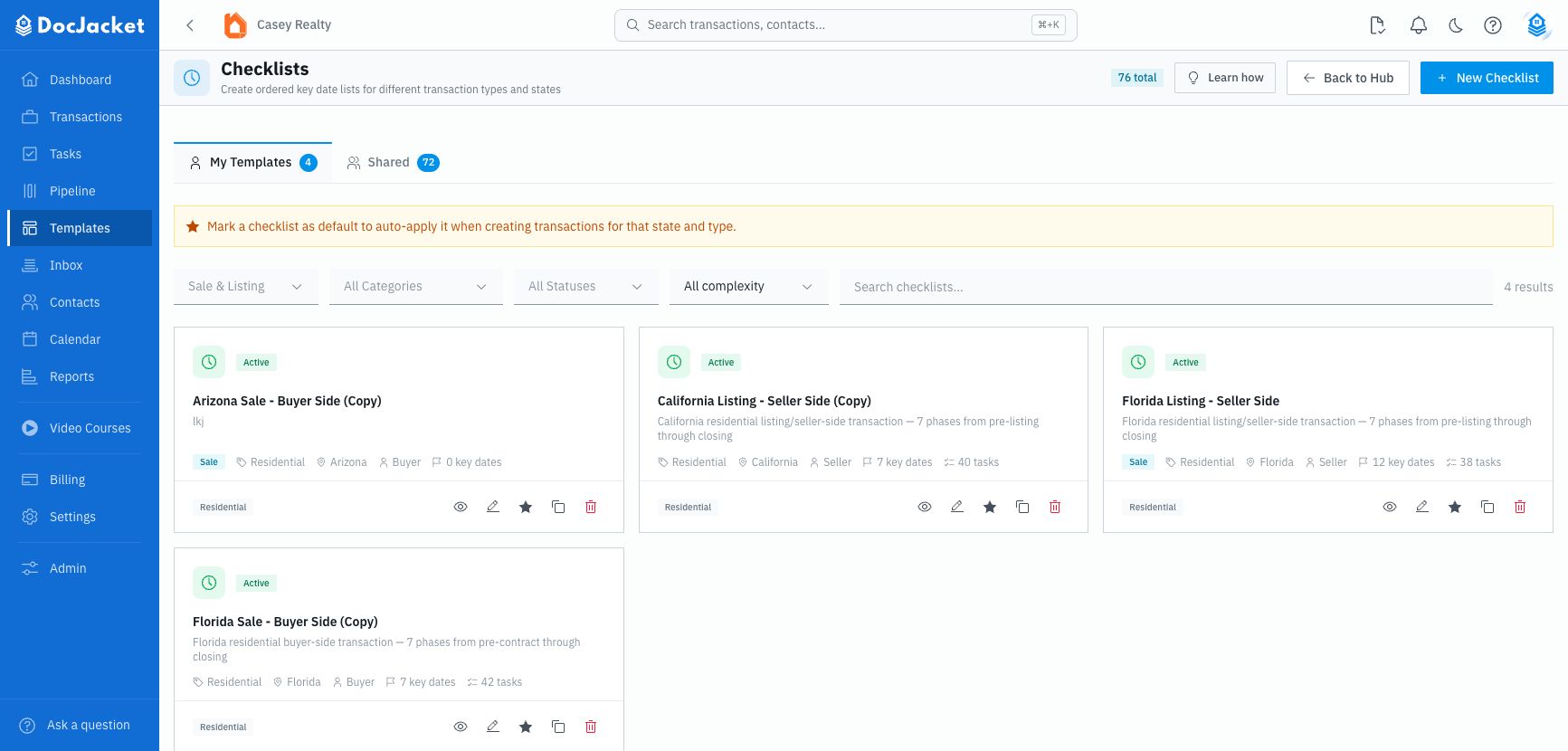
The page has two tabs:
- My Playbooks — Playbooks your organization owns and can edit
- DocJacket Playbooks — ready-made Playbooks DocJacket provides, available to every organization
DocJacket Playbooks are read-only. Use Copy to My Playbooks or Duplicate before customizing key dates, tasks, or automations. Your copy shows a Copied from line so you can always tell where it started.
Use the filters to narrow the list by:
- Transaction Type — Sale, Listing, or both
- Property Category — Residential, Commercial, Land, Lease, New Build, and other categories
- Status — Active or Inactive
- Complexity — Lite or Standard
- Search — Playbook name or description
On My Playbooks, you can mark an active Playbook as the default. Default Playbooks can auto-apply when creating transactions for the matching state and type.
An Inactive Playbook can't auto-apply and can't be set as the default. To bring one back, click Activate on its row in the list — the Inactive badge clears immediately, and the Playbook is usable and default-eligible again. (DocJacket system Playbooks can't be activated or deactivated; copy one to My Playbooks instead.)
Creating a Playbook template
- Go to Templates → Playbooks
- Click New Playbook
- Add a name, transaction type, property category, state, side, and description
- Save the template to open the Playbook builder
- Add key dates from the Key Date Library, or create new key dates while building
- Add tasks and tie them to the key dates they belong to
- Add task timing rules, priorities, phases, and sections
- Add automations, such as scheduled emails or completion rules
- Use Test template to preview the Playbook against a sample effective date
- Save the template
The builder title may say Create Playbook or Edit Playbook. The Templates hub and list page label this area Playbooks.
Template settings
The builder shows a Template Summary card with the Playbook name, category, state, side, key-date count, task count, and automation count.
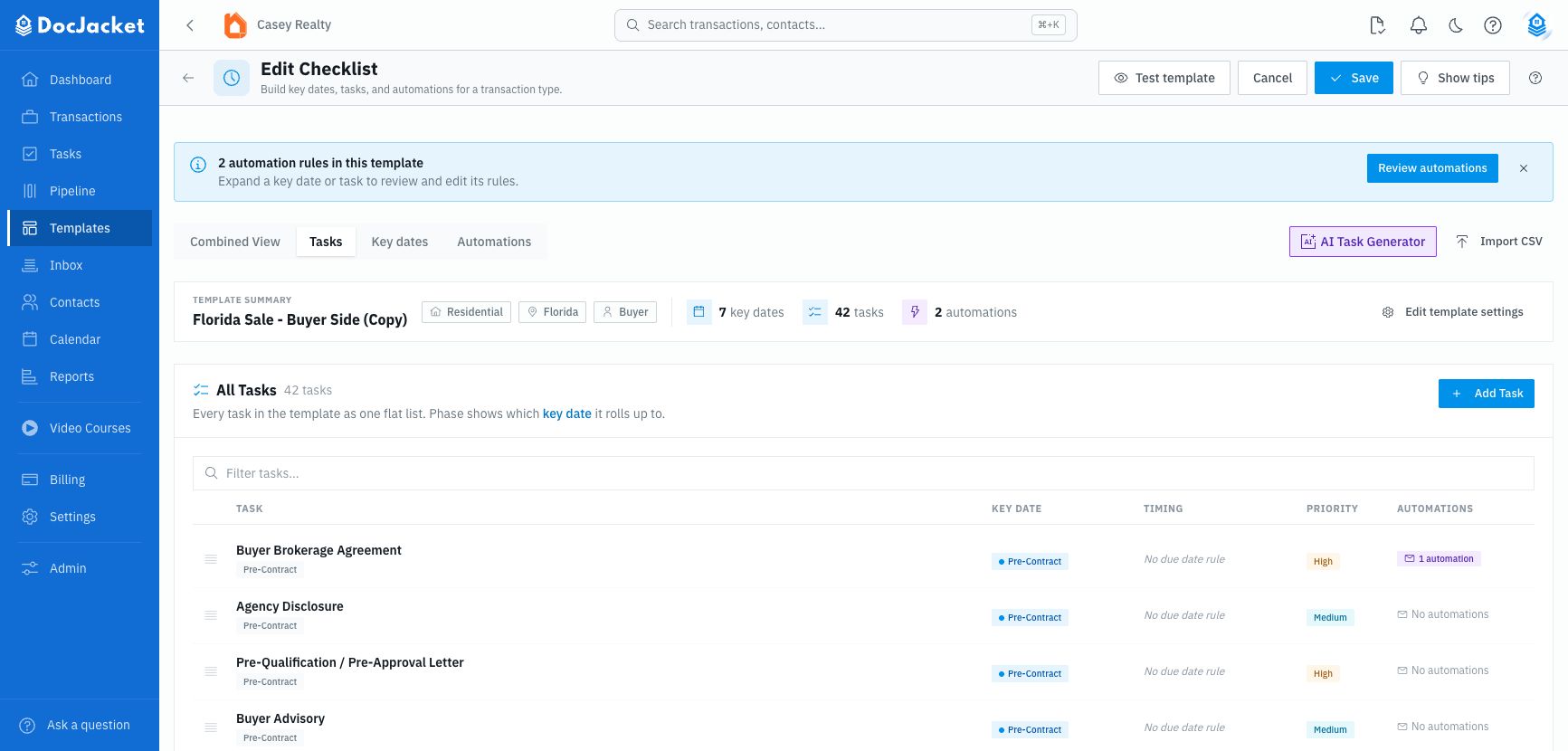
Use Edit template settings to change:
- Name
- Transaction Type
- Property Category
- State
- Side
- Description
DocJacket Playbooks are read-only. Copy one into My Playbooks before editing settings, key dates, tasks, or automations.
Adding key dates
Key dates organize the Playbook. For each key date you can define:
- Name
- Description
- Key Date Type
- Side
- Category
- Priority
- Date rule type
- Anchor date field
- Offset direction
- Offset days
- Calendar-day or business-day calculation
- Whether the date is required
Use Add Key Date in the builder. The drawer has two modes:
- Create New — define a new key date rule directly inside the Playbook
- From Library — pick an existing reusable key date from the Key Date Library
If a shared key date needs customization, duplicate it first and use the copy in your Playbook.
Adding tasks
Playbook tasks are the work your team completes during the transaction. Tasks can include:
- Name and description
- Phase and section
- Priority
- Assigned owner
- Due-date anchor
- Offset days and direction
- Calendar-day or business-day calculation
- Linked key dates
- Document category
- Subtasks
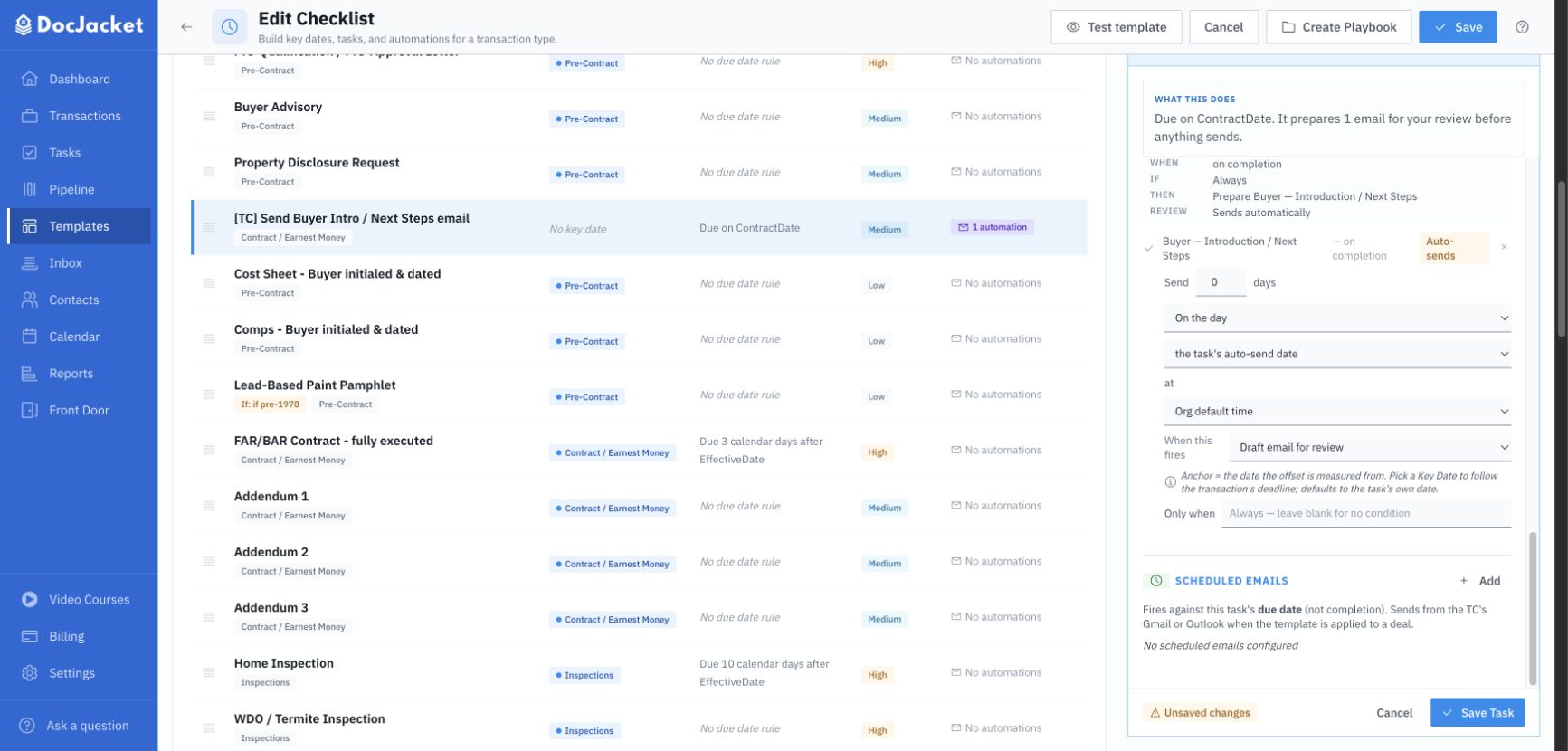
- Scheduled emails
- On-completion email actions
- Conditional Task — only create this task when the deal matches a condition (see Conditional tasks)
Tasks should reference the key date they depend on. For example, a task can be due 3 days before Final Walkthrough instead of hardcoding the same rule from Closing Date.
To add a task, click Add Task, fill in the panel that opens on the right, and click Add task at the bottom of the panel — it is also in the panel's header strip. That button is what saves the task to the Playbook; while a new task is unsaved the panel shows a Not added yet badge. The page-level Save at the top also adds an open task before it saves the Playbook settings. Closing the panel with × or Cancel discards a new task (DocJacket asks first if you have typed anything).
Repeating tasks
A Playbook task can recur: every week, or every 2 weeks, on the day you choose. This is how you build a weekly compliance check, a "Friday update to the client" email task, or any other every-Monday / every-Friday routine into every deal.
In the task panel, under Task Details, set Repeat to Weekly or Every 2 weeks and pick the day in On.
A task either repeats or is due relative to a key date, never both. If Due date is based on (under When it's due) is set to a key date, the Repeat control is hidden. Clear that anchor to make the task repeat. DocJacket won't save a task that has both.
When you apply the Playbook to a deal, the first occurrence is due on the first matching day on or after the day you apply it (apply on a Friday and a "weekly on Friday" task is due that same day). Completing an occurrence creates the next one. The series ends when the deal closes. See Repeating tasks for how occurrences behave on a deal.
Playbook phases
Every Playbook task can be given a Playbook phase. The phase list is fixed. These are the phases, in order:
| Phase | Typical work |
|---|---|
| Pre-Listing | Listing agreement, photos, disclosures, prep before the listing goes live |
| Active Listing | MLS, showings, feedback, and offers while the listing is on the market |
| Intake | Open the file, confirm the parties, collect the executed contract |
| Due Diligence | Inspections, repair negotiation, contingency tracking |
| Financing | Loan application, appraisal, loan approval |
| Pre-Closing | Title, HOA/estoppel, walkthrough, closing disclosure, scheduling the closing |
| Closing | Closing day itself: signing, funding, recording, keys |
| Post-Close | Deliver documents, request a review, close out the file |
You can't add, rename, or delete phases. There is no "add phase" button, and the Playbook phase dropdown only offers the eight phases above. If your listing tasks don't seem to fit, use Pre-Listing and Active Listing; those are the listing phases.
When you apply a Playbook, you can choose to apply only selected phases.
Conditional tasks
Some tasks only apply to certain deals — a septic inspection, an HOA document review, a task that only matters on a cash deal. You do not need a separate Playbook for each combination. Build one Playbook with every task in it, and mark the situational ones conditional. A conditional task whose condition isn't met is simply not created when you apply the Playbook, so the deal only gets the work that actually applies.
To make a task conditional, open the task in the Playbook builder and, under Options, tick Conditional Task. A Transaction field dropdown appears — pick the field that decides whether the task applies.
Which fields you can gate on
The Transaction field dropdown is a fixed list. It contains:
| Field | Behaves as |
|---|---|
| Cash deal | Yes/no flag |
| Sellers only | Yes/no flag |
| HOA contingency | Contingency |
| Radon contingency | Contingency |
| Septic contingency | Contingency |
| Well contingency | Contingency |
| Pool contingency | Contingency |
| Solar contingency | Contingency |
| Lead paint contingency | Contingency |
| Inspection contingency | Contingency |
| Smart-home contingency | Contingency |
| Home-warranty contingency | Contingency |
The two kinds behave differently, and the difference matters:
- Yes/no flags (Cash deal, Sellers only) — the task is created only when the flag is on. If the flag is off, or nothing has been filled in yet, the task is skipped.
- Contingencies — the task is created unless the contingency is explicitly set to N/A on the deal. If it's Active, or nobody has set it yet, you still get the task. This is deliberate: an unanswered contingency shouldn't quietly drop work.
Gating on financed vs. cash deals
There is a Cash deal field, but there is no "financed" field. Because a yes/no flag only creates the task when the flag is on, gating a financing task on Cash deal would attach it to cash deals only — the opposite of what you want.
The way to handle financing work is to put it in the Playbook normally, with no condition, and instead mark the cash-specific tasks conditional on Cash deal. Financed deals are the common case, so let them be the default and gate the exception.
The "If label" box is cosmetic
Under the field dropdown there's an If label box (for example, If HOA). This is
text only — it does not gate anything. It just prints on the task row so your team
can see at a glance when a task applies. If you type a label but don't pick a
Transaction field, the task is created on every deal.
Conditions that aren't available yet
The dropdown above is the complete list. Common conditions that are not currently supported include a buyer's home sale contingency, a suitable housing contingency, and financing type beyond the cash flag. For those, either leave the task unconditional and delete it on deals where it doesn't apply, or remove whole task groups during apply — the apply dialog lets you deselect individual tasks and skip entire groups before anything is created.
The Conditional Task checkbox in the Playbook builder controls whether a task gets created at all. There is also a conditional marker on an individual task inside a transaction (Task Options) — that one is a label on work that already exists, and it doesn't create or remove anything.
Automations
Automations can be attached to key dates or tasks. In practice, most automations live on tasks.
Common automation uses include:
- Prepare an email when a task is due
- Send a linked email template
- Include selected document categories
- Trigger follow-up work when a task is completed
- Send an automated text message (SMS) instead of, or as well as, the email
Delivery. Every task automation has a Deliver by choice: Email, SMS, or Email + SMS. Pick SMS and the builder checks your texting setup on the spot — if SMS isn't on your plan or you haven't set up a business number yet, a chip says so and the save tells you why. Email automations are never affected.
Key-date reminders. Select a key date and open its Reminders panel. Add reminder lets you set when it goes out — Days before the key date (add one or several, for a countdown like 7 and 3 days), On the key date, or When it's marked complete — who receives it (Recipients by role, plus direct addresses under Also email), the Email template, Deliver by, and Require review before sending. Each saved reminder is labelled Waits for review or Sends automatically; edit it in place or Remove it. Removing a reminder from the Playbook does not change deals that were already created from it.
Use Review automations to see every automation rule in the Playbook, grouped by key date and task. From there, use Edit to jump back to the rule in the builder. Bulk editing across automation rules is not currently part of this drawer.
AI and bulk tools
The Playbook builder includes tools for faster setup:
- AI Key Date Generator — Describe the transaction workflow and review proposed key dates before applying them.
- AI Task Generator — Generate proposed tasks linked to the key dates in the Playbook.
- Import Tasks from CSV — Bulk-import tasks from a spreadsheet.
- CSV export — Download the Playbook structure for review or offline editing.
- Suggested tasks — Add common tasks for known key date types.
Generated and CSV-imported key dates and tasks are a starting point, not a finished Playbook — review them before relying on the Playbook with clients.
Testing a Playbook
Use Test template to preview the Playbook against a sample effective date. The preview shows key dates, linked tasks, computed sample dates when available, and tasks not linked to any key date.
The preview is for template review. It is computed client-side and does not include configured holidays. Real transactions also use the transaction's actual contract dates, holidays, and any dates already extracted or entered.
Applying a Playbook to a transaction
From the transaction Overview's closing timeline, click Generate Timeline and pick a Playbook.
DocJacket can:
- Scope available Playbooks by the transaction's state, side, and type
- Show existing applied Playbooks so users do not accidentally stack duplicates
- Preview how many key dates and tasks will be created
- Show anchor dates used for calculation
- Assign tasks by owner or label
- Apply only selected phases
- Replace previously-applied template items when needed
- Preserve manually added items and contract-extracted dates when replacing template-generated items
After applying, the transaction has real key dates and real tasks. Moving key dates can update linked task due dates according to their rules.
Applying a second Playbook to the same transaction
You can apply more than one Playbook to the same deal, and by default the second one adds to what's already there — it does not wipe the first. This is what makes the listing-then-contract workflow work on a single record:
- Create the deal as a listing and apply your listing Playbook — order photos, sign the listing agreement, get it on the MLS.
- Work the listing. When it goes under contract, don't start a new deal — change the existing one's status (and type, if you use Listing/Purchase/Sale). See Turning a listing into a sale or purchase.
- Apply your contract-to-close Playbook to that same transaction.
Both sets of tasks and key dates now live on one file, with one address, one contact list, and one document set — and the listing history stays attached.
The apply dialog shows any Playbooks already applied, so you can see what's there before adding another. If you do want the new Playbook to take over, tick Replace existing key dates and tasks — that removes the previously applied template-generated items on both the key-date and task side. Items you added by hand, and dates extracted from the contract, are preserved either way.
Leave Replace unticked when you're layering a second workflow onto a deal.
If you're correcting a Playbook you applied by mistake and it's the only one on the deal, ticking Replace is fine. But if the deal already has more than one applied checklist and you only want to drop one of them, don't tick Replace — it clears every applied checklist's tasks (and every template-generated key date on the deal) at once, not just the one you meant to fix. Instead, go to the Tasks tab, click the trash icon on the specific checklist's header to remove just its tasks, then apply the right Playbook — it adds cleanly to what's left.
Saving a transaction as a Playbook
If you customize a transaction's key dates, tasks, and automations, you can save that work as a new Playbook template. This is useful when a live deal becomes the model for a better workflow.
After saving, open the new Playbook in the builder to clean up names, sections, assignments, and automations.
Playbooks vs. key date rules
The Key Date Library stores individual reusable date rules. A Playbook bundles those rules with tasks and automations.
Example:
- Key Date rule: Final Walkthrough = Closing Date - 1 business day
- Playbook task: Schedule walkthrough = Final Walkthrough - 3 days
- Automation: Prepare walkthrough reminder email when the task is due
Tips
- Start with the built-in templates and customize them for your specific workflow
- Create state-specific variations — a Texas residential close has different deadlines than a Florida one
- Include the most common tasks in your template so they are created when the Playbook is applied
- Keep date calculation logic in the Key Date Library when the same rule will be reused
- Use task phases so users can apply only the work they need
- Test the Playbook before applying it to a live transaction
- Review and update templates periodically as regulations or your workflow change