Build a Playbook with AI
The Playbook builder walks you through a new Playbook one step at a time, with the Playbook assistant beside you. Describe the deal type or paste the checklist you already use, and the assistant drafts the key dates, tasks, emails and documents for you to check. Nothing is created in your account until you press Create Playbook on the last step.
Where to find it
- Go to Templates → Playbooks, stay on the My Playbooks tab, click New Playbook, and choose ✦ Create with AI. (Start blank opens the regular Playbook editor instead.)
- If you have no Playbooks of your own yet, the empty list shows a Build your own with AI button.
- Inside one of your own Playbooks, click Improve with the assistant to change it with the builder. On a DocJacket Playbook the button reads Copy and improve with the assistant: you build a new Playbook of your own from it, and the DocJacket one is left as it is.
The builder is open to people who can edit your organization's Playbooks and settings. If you don't see Create with AI, the builder may not be available on your account; New Playbook then opens the regular editor.
The steps
The page is titled Build a Playbook: "Answer a few questions and review the draft as it takes shape. Nothing is created until you say so." There are seven steps, shown across the top. You can click any step, or use Back and Next.
- About: what the Playbook is for.
- Key dates: which key dates it tracks.
- Tasks: what needs to get done.
- Emails: which emails go out.
- Documents: which documents you need.
- Finish: signature, agents and default.
- Review: check everything and create it.
The buttons at the top of the page:
- Leave goes back to Playbooks. Your draft is kept, and you can pick it up later.
- Start from… replaces your draft with one based on another Playbook, either one of yours or a DocJacket starter.
- Start over throws the current draft away and opens a blank one. DocJacket asks first: "Your current draft is thrown away and a blank one opens. Nothing has been created in your account yet."
Working with the Playbook assistant
Type into Message the assistant and click Send, or click Draft everything to have the assistant fill in every step for you to review.
- Paste your existing checklist. You can paste up to 4,000 characters at once. Task names are kept exactly as you wrote them. If your list is longer, paste the first part, then paste the rest on the Tasks step.
- Copy from your own Playbooks. Ask the assistant to copy tasks or documents from another of your Playbooks into this draft. It tells you what it copied and what it skipped.
- It tells you what a Playbook can't hold. If you ask for something a Playbook doesn't store, such as a PDF or a flyer, the assistant says so first and carries on with the rest of the step.
- Report templates aren't used for task emails. Templates in your Reports category are left out when the assistant picks an email for a task.
Subtasks in the builder
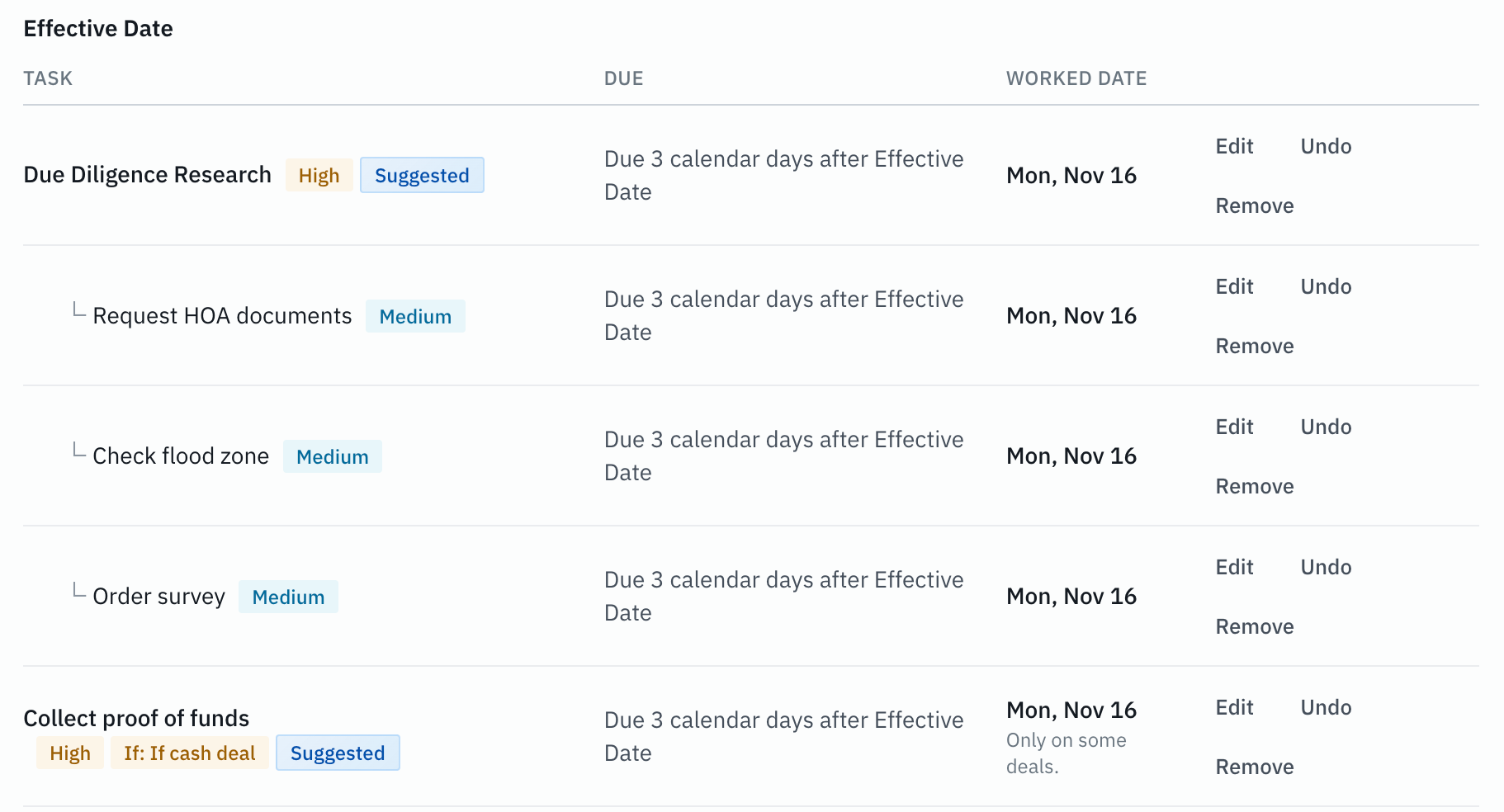
If a task has a group of small checks under it, ask for them as subtasks. For example: "Add a task called Due Diligence Research with these checks under it as subtasks: Request HOA Verification, Research Septic Details, Research Well Details." The assistant adds each check as a subtask of the task, not as a list in the task's description.
- Tasks step: each subtask is indented right under its task. You can edit one there, and it has no Phase field because it follows its task's phase. Removing a task that has subtasks says "This also removes its N subtasks."
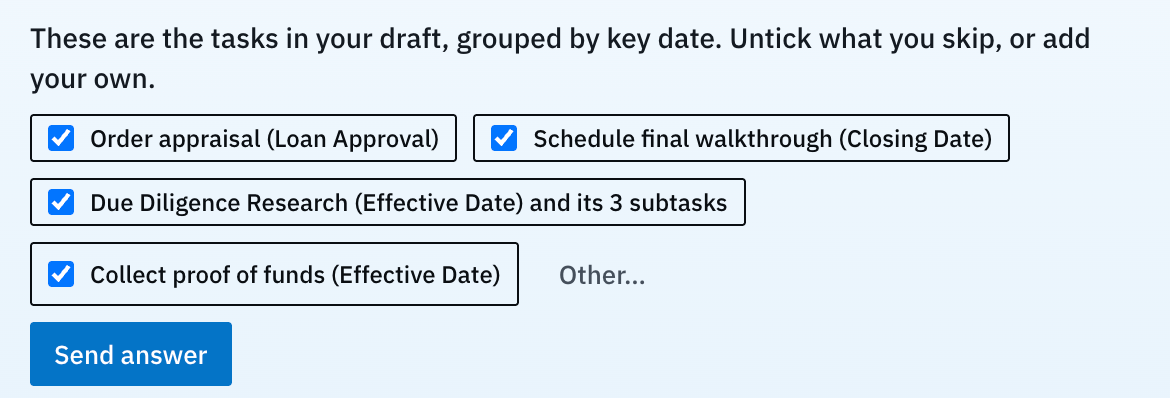
- The assistant's task checklist: on the Tasks step the assistant lists the tasks in your draft as checkboxes. It lists main tasks only, and a task with subtasks reads like "Due Diligence Research (Effective Date) and its 3 subtasks". Unticking that task removes its subtasks with it.
- Review step: the totals count tasks and subtasks separately, for example "38 tasks, 4 subtasks", and each subtask line reads like "Request HOA Verification (subtask of Due Diligence Research)".
- Copying from another Playbook: when you ask the assistant to copy tasks from one of your Playbooks, each copied task brings its subtasks with it. A subtask can't be copied on its own.
- What a subtask can't have: subtasks are one level deep, and emails go on the main task. A task can't wait on a subtask.
After the Playbook is created, the subtasks work like any others. See Subtasks.
Review and create
The Review step lists everything the draft will add. Untick any line you don't want. Test it shows the key dates worked out against a sample date so you can check the timing.
When you're happy, click Create Playbook. If the button is greyed out, the reason is shown beside it. For example, "Fix the highlighted lines first." means a line needs a change before the Playbook can be created.
After the Playbook is created, click Open and the Playbook's name to go to it. The page also shows an Undo button with the date it is available until. Undo removes the new Playbook and what it added. Anything a deal already uses is archived instead, and anything you changed since stays as it is.
Improving a Playbook you already have
Improve with the assistant opens the same steps, titled Improve and your Playbook's name. Every change is listed on Review, and nothing changes until you press Save changes. If deals already use the Playbook, Review tells you how many. Those deals keep the tasks, dates and emails they already have.
When a task's condition changes, Review lists it as Condition: before → after, for example Condition: none → Cash deal. A task with no condition shows as none.
Drafts
You have one open draft at a time. Leaving the builder keeps it, and Create with AI opens that draft again instead of starting a new one.
While a draft is open, the Playbooks page shows "You have a Playbook draft in progress. Nothing in it has been created yet." with three buttons:
- Continue your draft reopens it.
- Dismiss hides the notice. The draft is kept.
- Discard draft throws the draft away for good. Nothing it held had been created yet.
If you come back to a draft you haven't worked on in more than 7 days, the builder names the dates, for example "You're continuing the draft you started on Nov 2 (last worked on Nov 3)." Click Keep working on it to carry on, or Start a new one to throw it away and begin again.
Cash deals and financed deals
A Playbook task can carry a condition, so it is added only to the deals it fits. The Cash deal condition is easy to get backwards:
- A task with the Cash deal condition is added only on cash deals.
- To skip a task on cash deals, don't use Cash deal. Use an Add when rule of Buyer is financing, or put the task under a key date that only financed deals get.
For example, Confirm Cash Deal Proof of Funds is a correct use of the Cash deal condition: only cash deals need it. Order Appraisal with the Cash deal condition would do the opposite of what you want: it would be added only on cash deals and left off every financed deal. Give it a Buyer is financing rule instead.
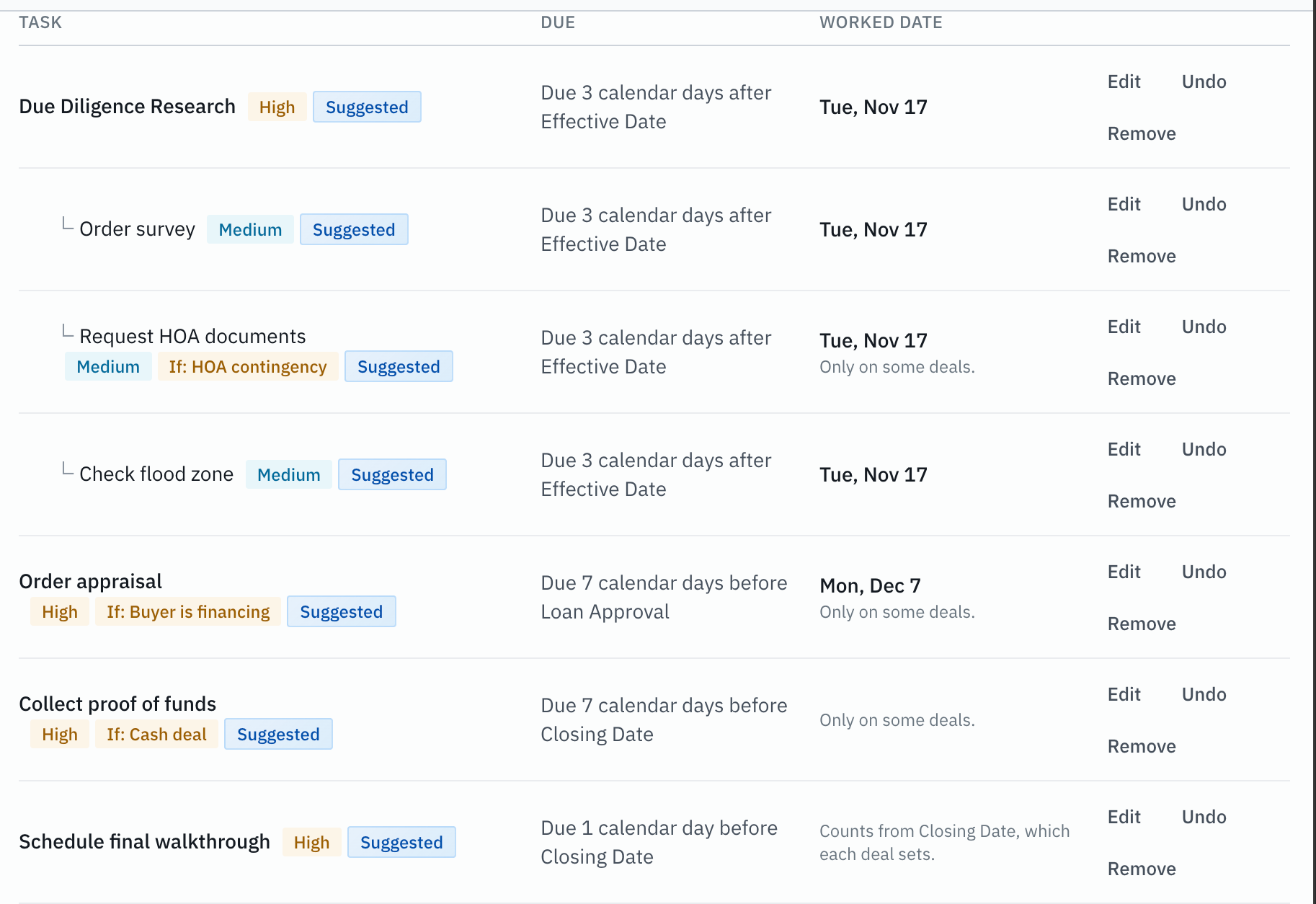
On the Tasks step, a task that has a condition shows an If: … chip beside its name. The chip names the condition itself, for example If: Cash deal, If: HOA contingency or If: Buyer is financing, so it always matches what the Playbook will do. Under its worked date the task also reads "Only on some deals." When you edit that task there, a line reads "Only on some deals: [the condition]. Change it in the Playbook editor after Create, or ask the assistant." The condition itself can't be changed in the builder form.
When the assistant drafts a task that sounds like financing, such as an appraisal or lender task, and it comes back set to cash deals only, the builder changes it to Buyer is financing for you. A task whose name mentions cash or proof of funds is left as it is. If a financing task still ends up on Cash deal, for example because you set it that way, the builder warns you on that task: financed deals will not get it.
The builder also warns when a task that checks whether a deal has something, such as a "Verify…" or "Research…" task, is set to appear only on deals that already record it. That task would be skipped on deals where the item is still blank. The warning suggests "Create unless marked N/A" instead.